Explore the three AI Analysis tabs through a selected set of deer photographs, followed by AI settings and model downloads.
For photo browsing, focus overlays, and burst review, see Screenshots.
This is the multi-page printable view of this section. Click here to print.
Explore the three AI Analysis tabs through a selected set of deer photographs, followed by AI settings and model downloads.
For photo browsing, focus overlays, and burst review, see Screenshots.
AI Analysis offers three tabs for reviewing selected photographs:
All three run locally on the Mac. The examples below use the same four deer photographs, with Selected (4) active and Tagged (0) showing no photographs rated two stars or higher. The filmstrip at the bottom keeps the selected set in view. For the workflow, see AI Step by Step.
CLIP — all catalog images: CLIP runs quickly enough to analyze every image in the catalog. Its saved image embeddings support similarity, burst grouping, and semantic search.
SAM 3 and Qwen — selected photographs: These models require substantially more computation, so AI Analysis uses a smaller set of candidates selected in Grid View or rated two stars and higher. Use them for a closer review after narrowing down the catalog.
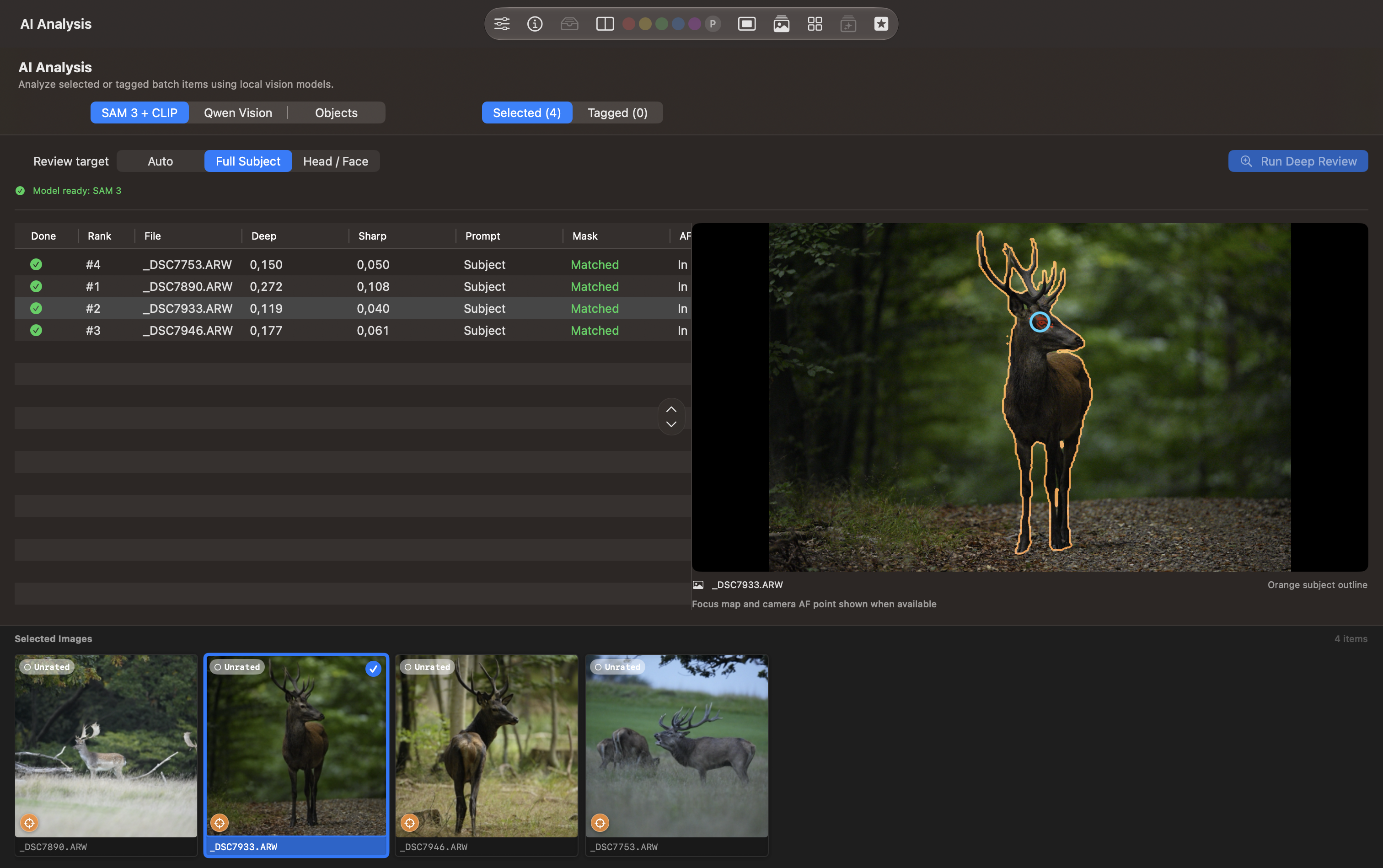
The SAM 3 + CLIP tab shows a completed Deep Review with Full Subject selected. Auto and Head / Face are the other review targets, and the green readiness indicator confirms that SAM 3 is available. Run Deep Review starts the review.
The table lists completion, rank, filename, Deep and Sharp scores, the subject prompt, mask status, and autofocus evidence. All four rows show Matched masks. The highlighted file, _DSC7933.ARW, is ranked second; _DSC7890.ARW is ranked first.
On the right, the selected stag has an orange subject outline and a camera autofocus marker near its eye. Check that the outline follows the intended subject before relying on the ranking. The Deep and Sharp values represent different measurements and should be read alongside the preview.
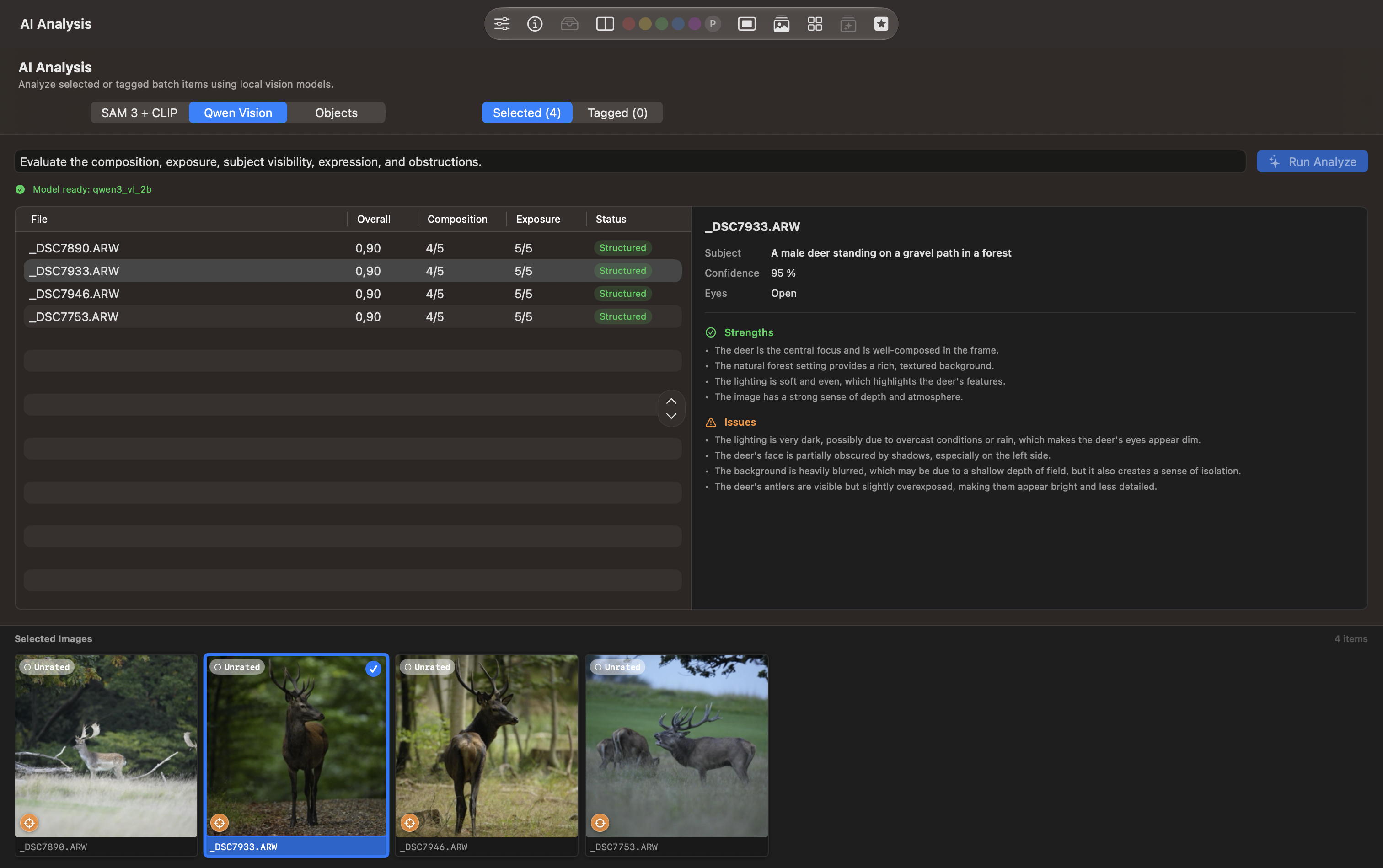
The Qwen Vision tab displays an editable prompt asking about composition, exposure, subject visibility, expression, and obstructions. The green indicator shows the Qwen model is ready, and Run Analyze starts assessment.
The completed table shows Overall, Composition, Exposure, and Status for each file. In this example, all four photographs receive an overall score of 0.90, composition 4/5, exposure 5/5, and Structured status.
The right-hand panel describes the selected stag on a forest path, reports 95% confidence and Eyes: Open, and lists strengths and issues. The strengths mention composition, the forest setting, soft lighting, and depth; the issues mention dark lighting, shadows on the face, background blur, and bright antlers. These are the model’s observations to check against the photograph. Identical scores do not establish that the four frames are equally suitable for your final selection.
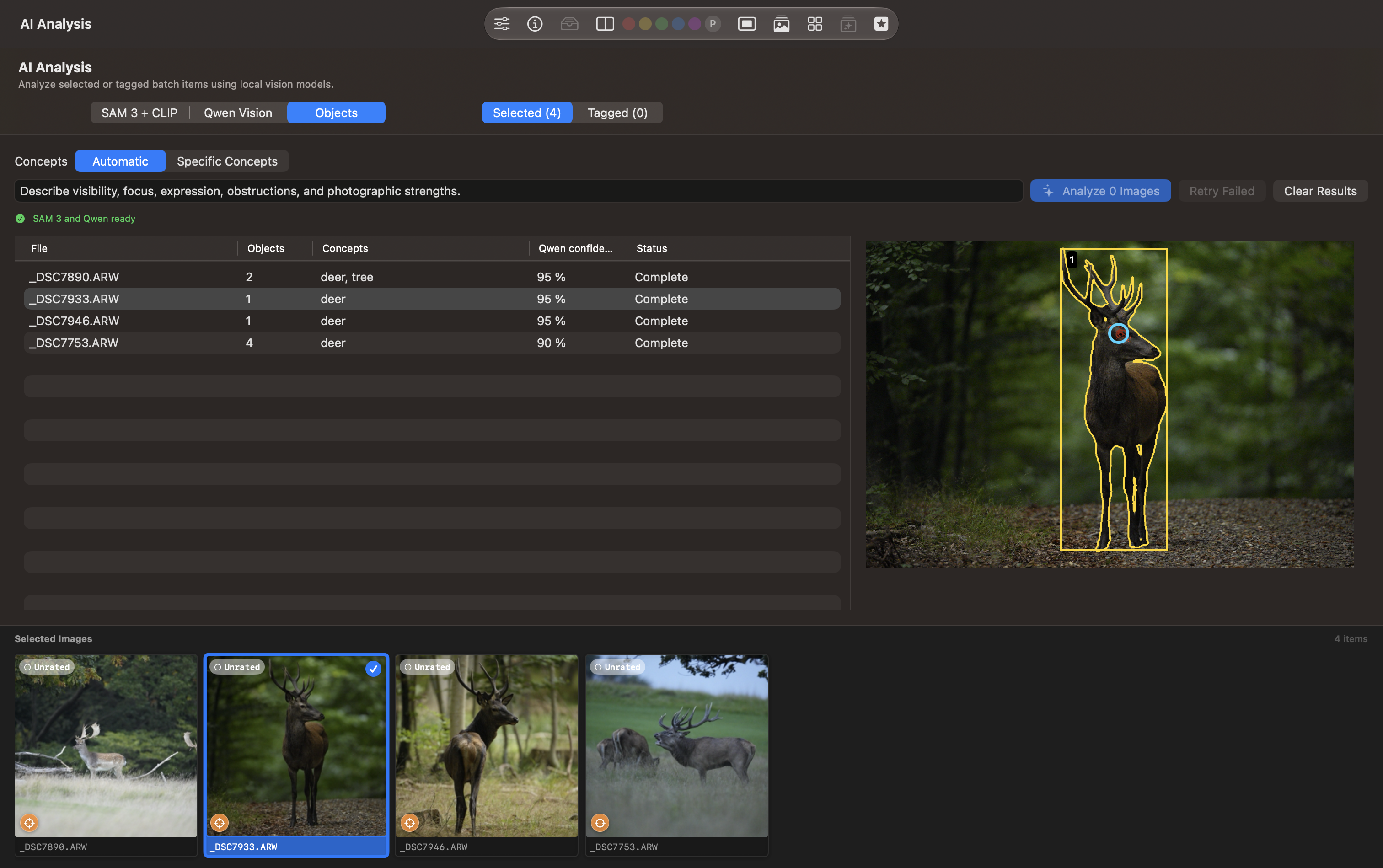
The Objects tab combines SAM 3 masks with Qwen descriptions. Automatic lets the model suggest concepts; Specific Concepts lets you provide the subjects to look for. The additional criteria field asks about visibility, focus, expression, obstructions, and photographic strengths. Both models show as ready.
The completed table lists filenames, object counts, concepts, Qwen confidence, and status. The four photographs contain between one and four detected objects. The first row includes the concepts deer, tree; the selected _DSC7933.ARW row contains one deer with 95% Qwen confidence.
The preview marks that stag as Object 1, with a yellow outline and bounding box. Analyze 0 Images indicates that no pending images remain in this set; Retry Failed and Clear Results are also visible.
The next screenshot shows the selected object’s crop in the right-hand detail panel. Above it, AF inside, Focus map 100%, and SAM 3 mask: 98% summarize the focus-location and mask evidence. Below the crop are a scene summary and the separate 95% Qwen assessment confidence.
The crop helps you inspect what the mask retained. SAM 3 mask confidence and Qwen assessment confidence describe different model results; neither is a sharpness score or proof that the analysis is correct.
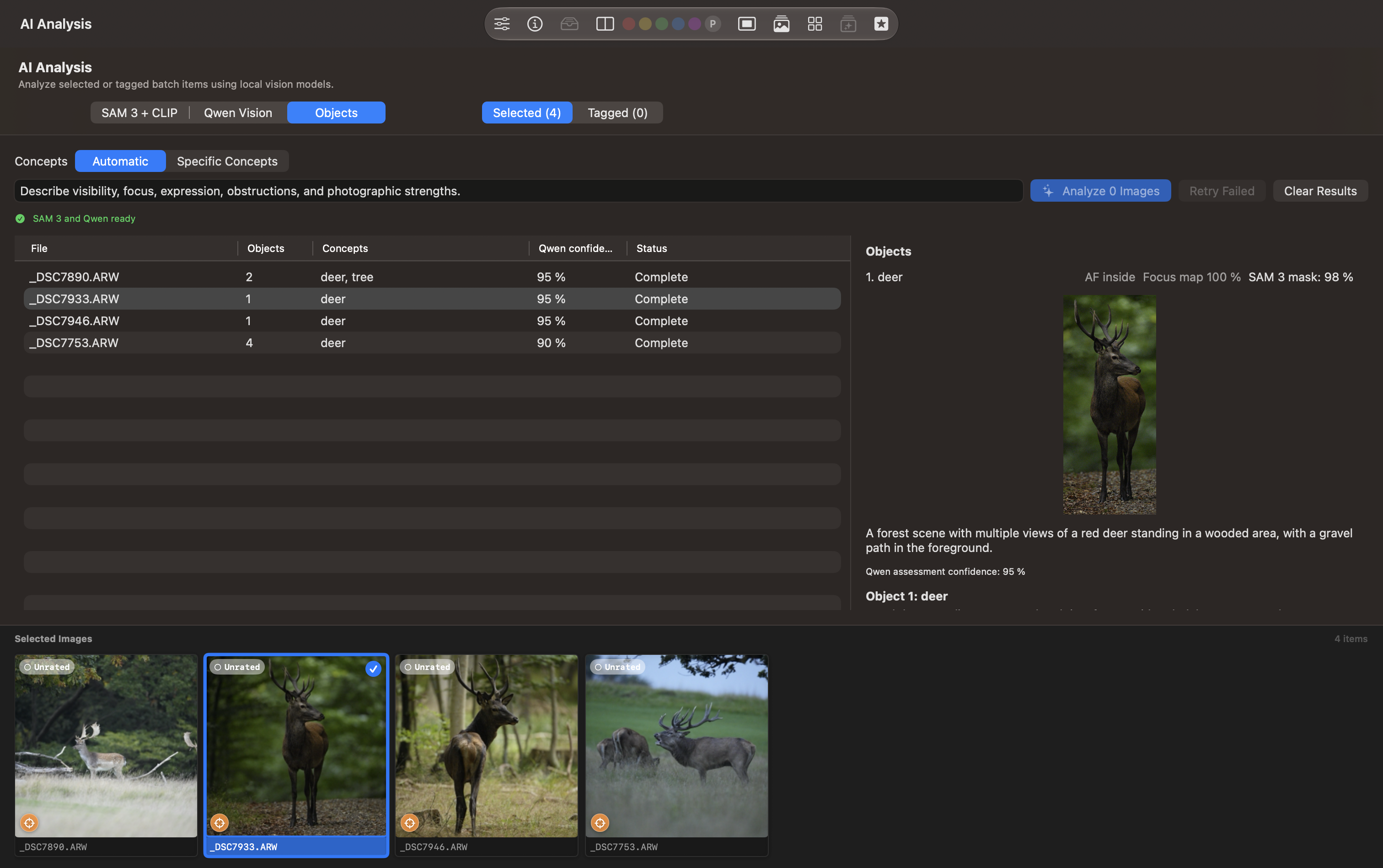
Further down the same detail panel, Qwen describes Object 1: deer, labels visibility as clear and focus as sharp, and lists strengths such as natural lighting and fur texture. Measured focus locations reports that the camera AF point is inside the object, all highlighted focus-map edges are on it, and highlighted edges are present near the AF point.
The panel also lists Preferred objects: 1. Read the model’s description alongside the measured locations and the original photograph. As the panel explains, overlap alone does not confirm sharpness. The summary’s reference to “multiple views” should also be checked: the overview and crop show the same source photograph.
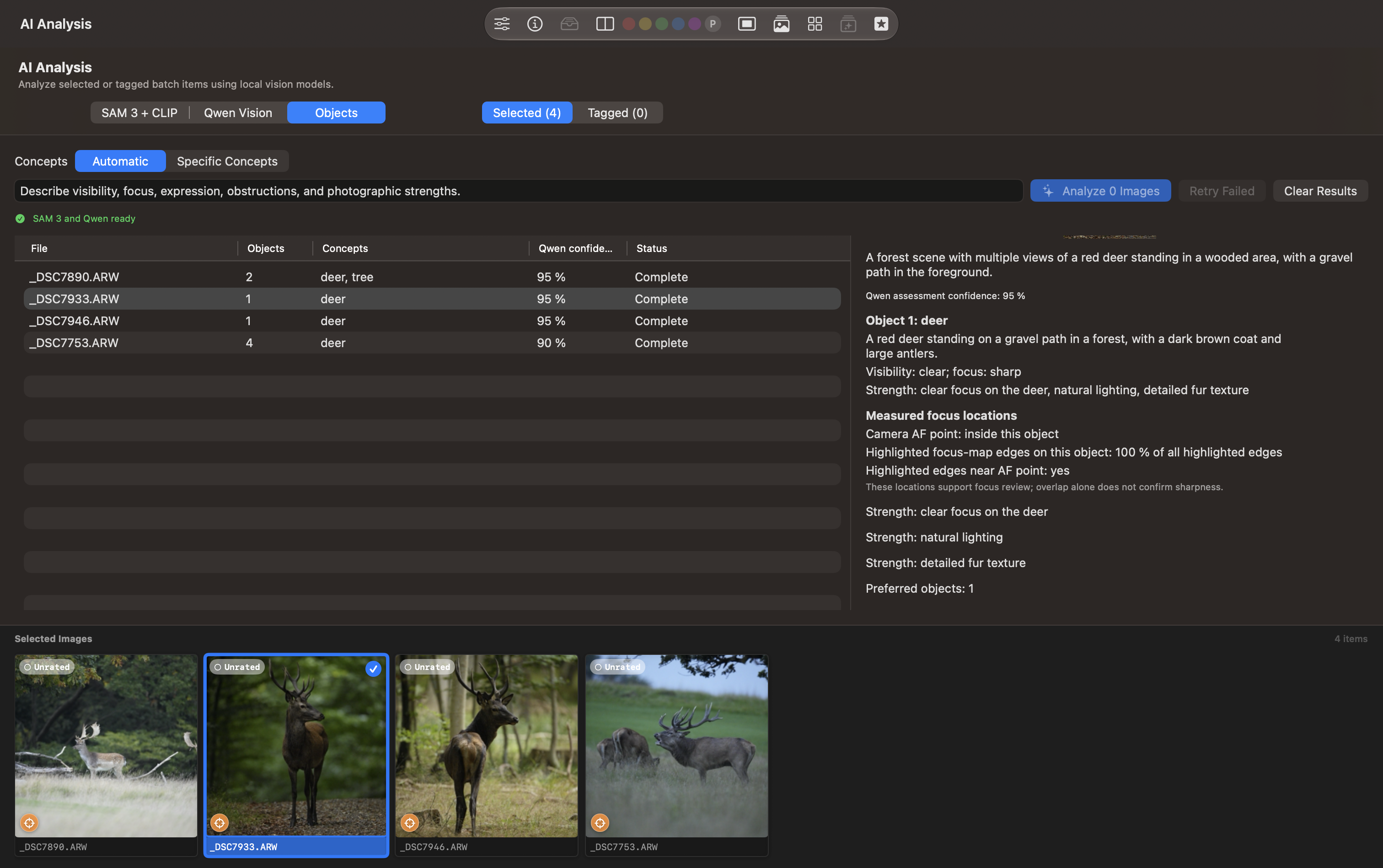
The AI settings tab shows SAM 3 and DataComp CLIP as Available, with Show in Finder controls for their installed resources. Use selected CLIP model for similarity is enabled. The saved burst evidence reports 574 CLIP embeddings in one catalog across 20 burst groups, with no Vision embeddings in that saved data.
The Qwen Vision Model area identifies qwen3_vl_2b and its active source as Downloaded by RawCull. Manage Downloads, Choose Custom Model…, and Validate Again provide model management controls. The Integration Readiness area also shows Vision similarity as available.
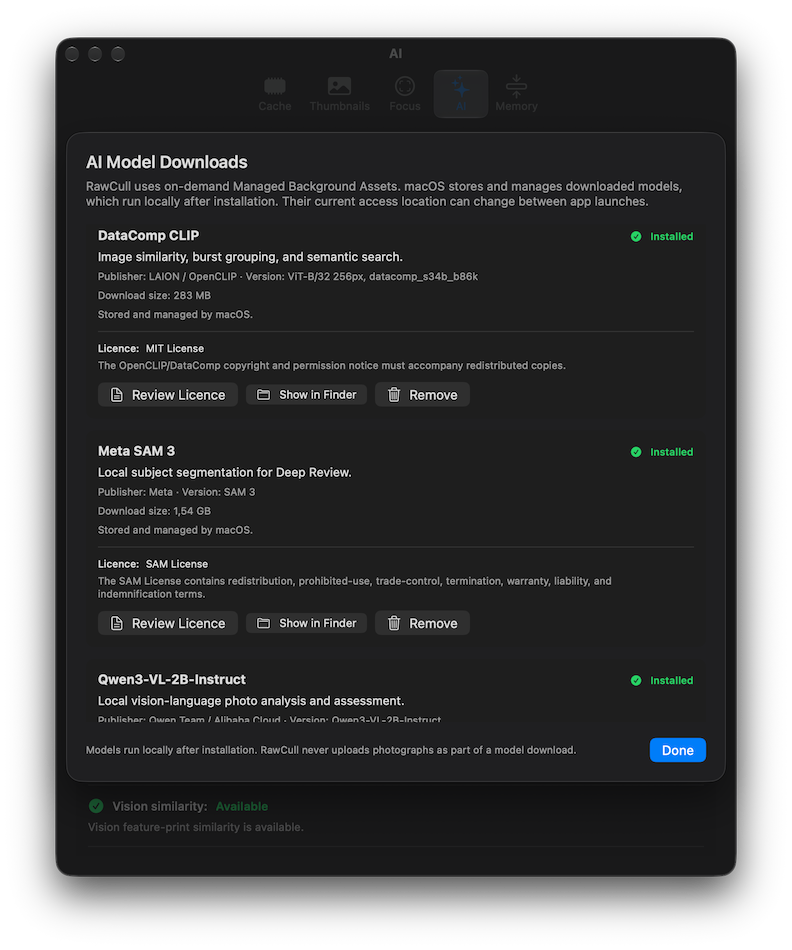
The AI Model Downloads sheet lists DataComp CLIP, Meta SAM 3, and Qwen3-VL-2B-Instruct as Installed. Each model entry identifies its purpose and installation status; the visible CLIP and SAM 3 entries also show publisher, version, download size, licence information, and Review Licence, Show in Finder, and Remove controls. Done closes the sheet.
The sheet explains that macOS stores and manages downloaded models through Managed Background Assets, and their access location can change between app launches. Models run locally after installation, and photographs are not uploaded as part of a model download. See AI Analysis for model purposes and download guidance.