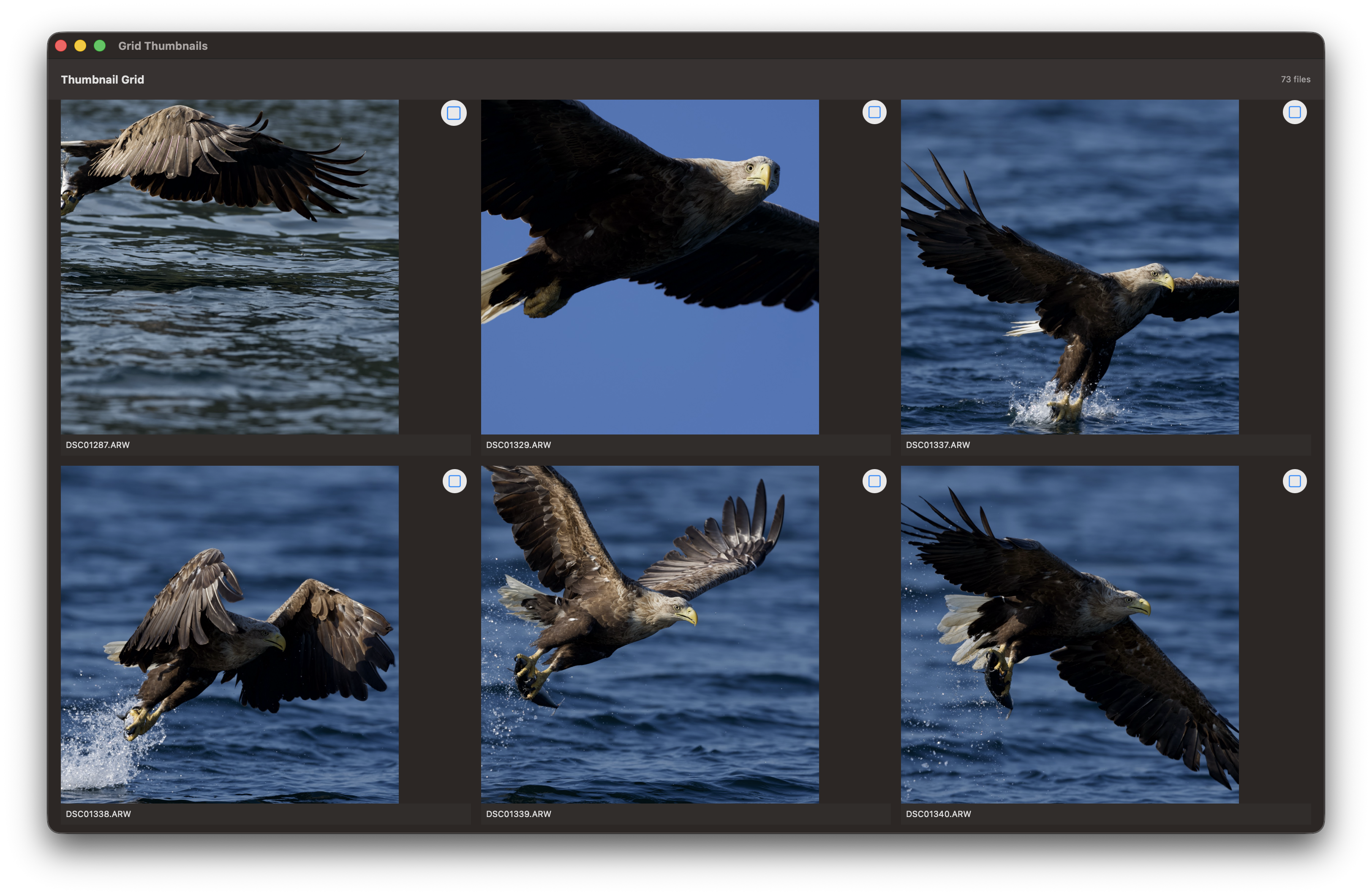
Below are some of the notable features of ARW Photo Culler:
1 - Features
RawCull features
The initial version exclusively supports culling Sony A1 mkI and mkII RAW files. While it may be compatible with other Sony ARW files, this has not been tested.
Privacy & Security
RawCull prioritizes your privacy and security with the following measures:
- Digitally Signed & Notarized: The application is signed and notarized by Apple, protecting against tampering and ensuring authenticity
- Sandboxed Application: Runs in a secure sandbox environment, limiting access to only the files and folders you explicitly grant
- Local-Only Processing: All photo processing happens entirely on your Mac—no cloud synchronization or data collection
- No Telemetry: RawCull does not collect, transmit, or store any usage data or personal information
- File System Security: Uses macOS security features to ensure safe access to your photo library with explicit user permissions
- Default rsync: Uses default
/usr/bin/rsyncfor the actual copy of files, also includes a--dry-run(simulate) copy - Non destructive: RawCull is only copying files, no delete or overwrite of files
Your photos and culling decisions remain completely private and under your control at all times.
Settings view
RawCull provides comprehensive settings to customize your culling experience and optimize performance:
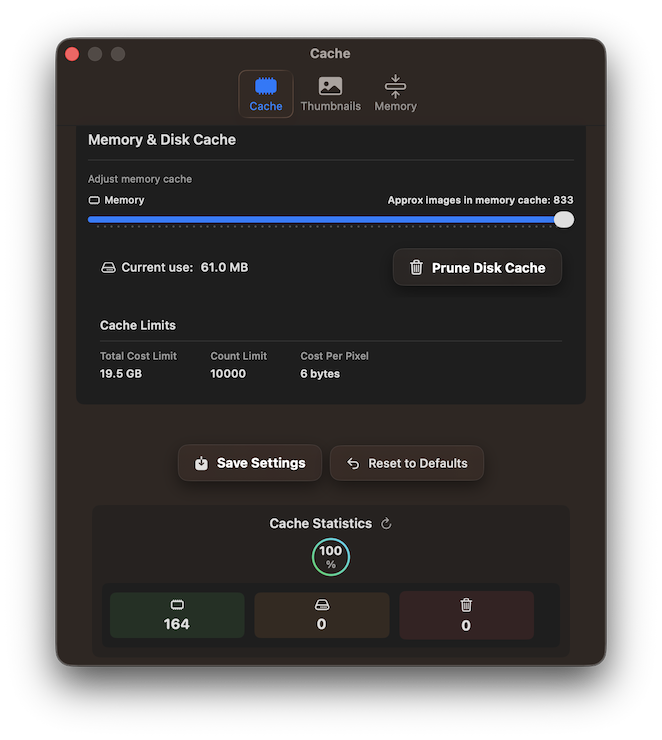
- Cache Management: Control thumbnail cache location and size to balance performance with disk space usage
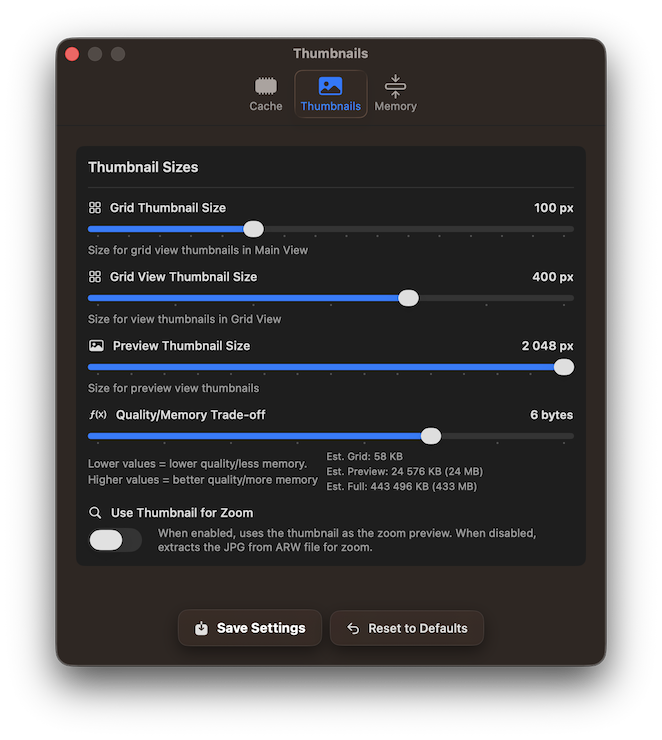
- Thumbnail Quality: Adjust thumbnail generation settings to optimize preview quality and loading speed
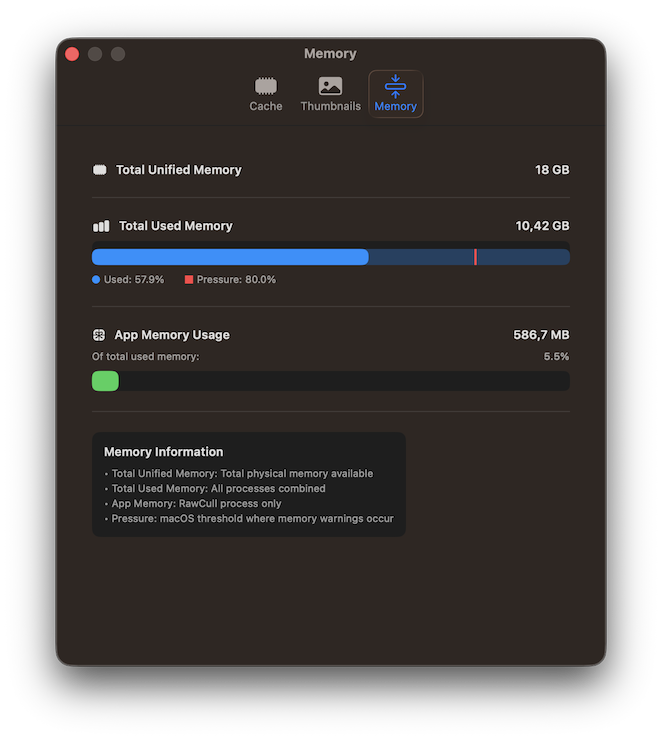
- Memory Settings: Configure memory allocation for handling large photo catalogs efficiently
- Display Preferences: Customize the interface layout, zoom behavior, and preview options to match your workflow
Access these settings from the application menu to fine-tune RawCull for your specific needs and system configuration. The cache statistics presents the memory hit-rate when viewing photos.
The memory tab displays the memory utilized, the total memory capacity, and a memory-pressure warning.
Scan catalog
When you select a folder containing your photos, RawCull performs a comprehensive scan to index all supported image files:
- Fast Indexing: Quickly reads metadata from all ARW files in the selected directory
- Thumbnail Generation: Creates high-quality thumbnails for instant preview during culling
- Progress Tracking: Real-time progress indicator shows scanning status and estimated completion time
- Background Processing: Scan operation uses efficient threading to maximize performance without freezing the interface
The scanning process prepares your entire photo library for efficient review, ensuring responsive navigation and smooth culling workflow.
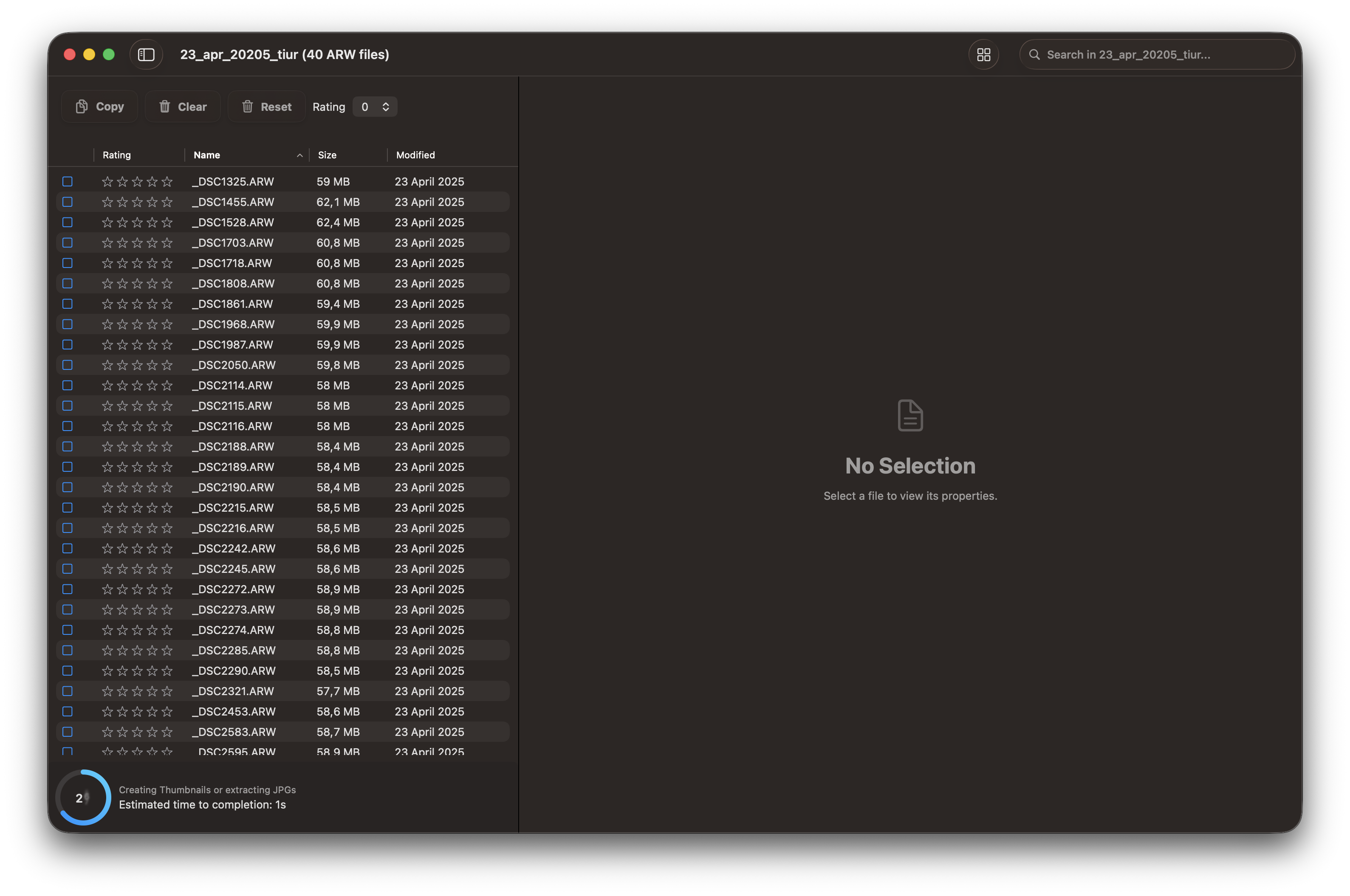
Main view
After scanning completes, RawCull displays your photo library in a comprehensive interface designed for efficient culling:
- Large Preview Area: View your current photo in high quality to assess composition and technical details
- Thumbnail Grid: Browse your entire catalog with responsive thumbnails showing all indexed photos
- Sidebar Navigation: Quick access to filtering options, marking tools, and library statistics
- File Details Panel: View EXIF metadata, file information, and technical specifications for each photo
- Marking Controls: Easily tag, rate, and organize photos with intuitive keyboard shortcuts and mouse controls
- Status Indicators: Visual markers show which photos are tagged, rated, or marked for review
The main view provides everything you need to review, evaluate, and organize your photo library in one unified interface.
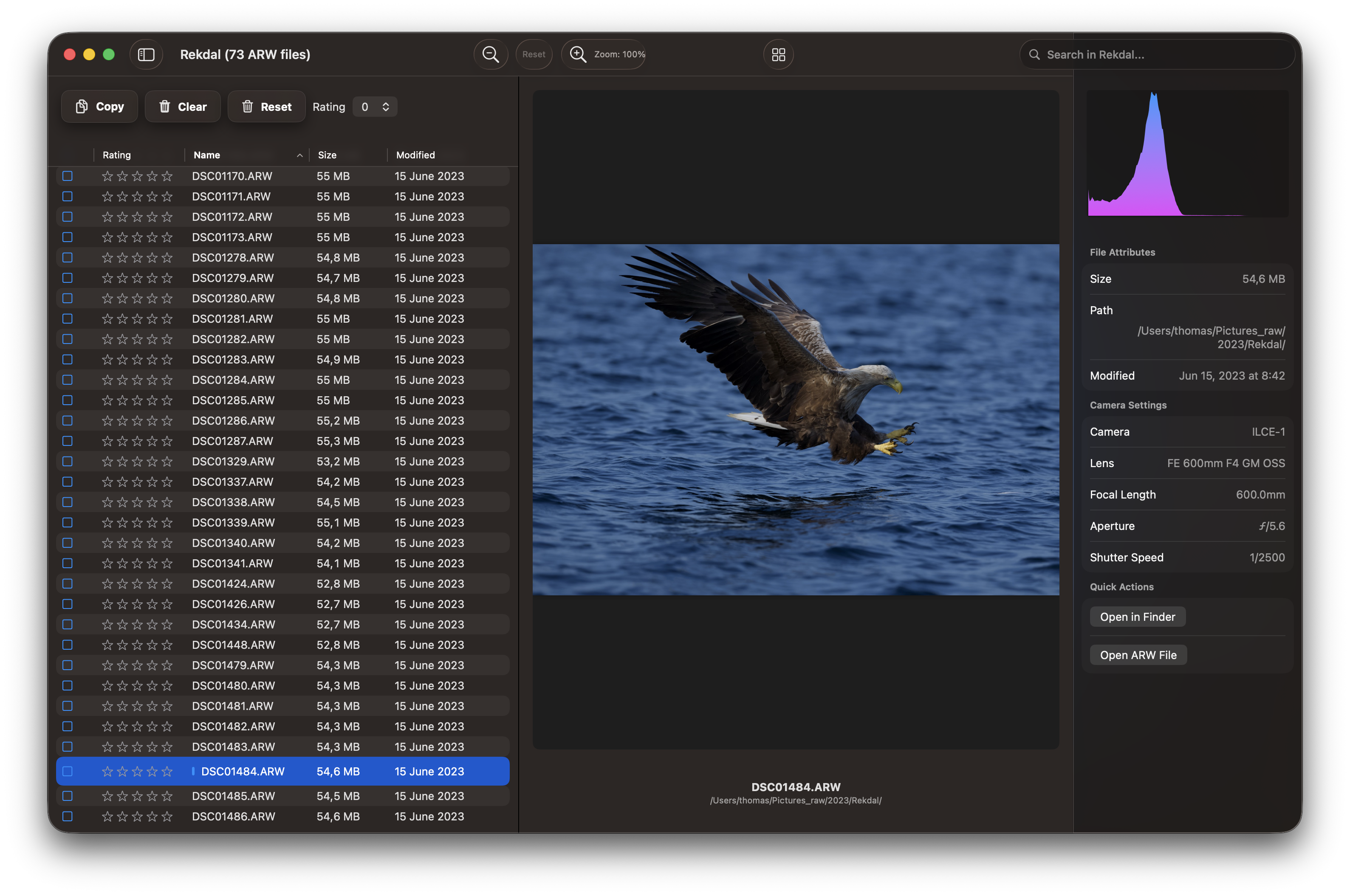
Main view hide Sidebar and File details
For focused culling sessions, RawCull allows you to maximize screen space by hiding interface elements:
- Hide Sidebar: Remove the sidebar to dedicate more space to photo viewing and evaluation
- Hide File Details: Collapse the file details panel when metadata isn’t needed for your current review
- Distraction-Free Mode: Focus entirely on the visual quality of photos without UI elements competing for attention
- Zoom View: With more screen space available, your photos display larger for better quality assessment
- Quick Toggle: Easily show or hide panels as needed during your culling session
- Responsive Layout: The interface automatically adjusts to utilize available screen space efficiently
This flexible layout adapts to your workflow, whether you need detailed metadata or prefer an uncluttered view focused purely on visual evaluation.
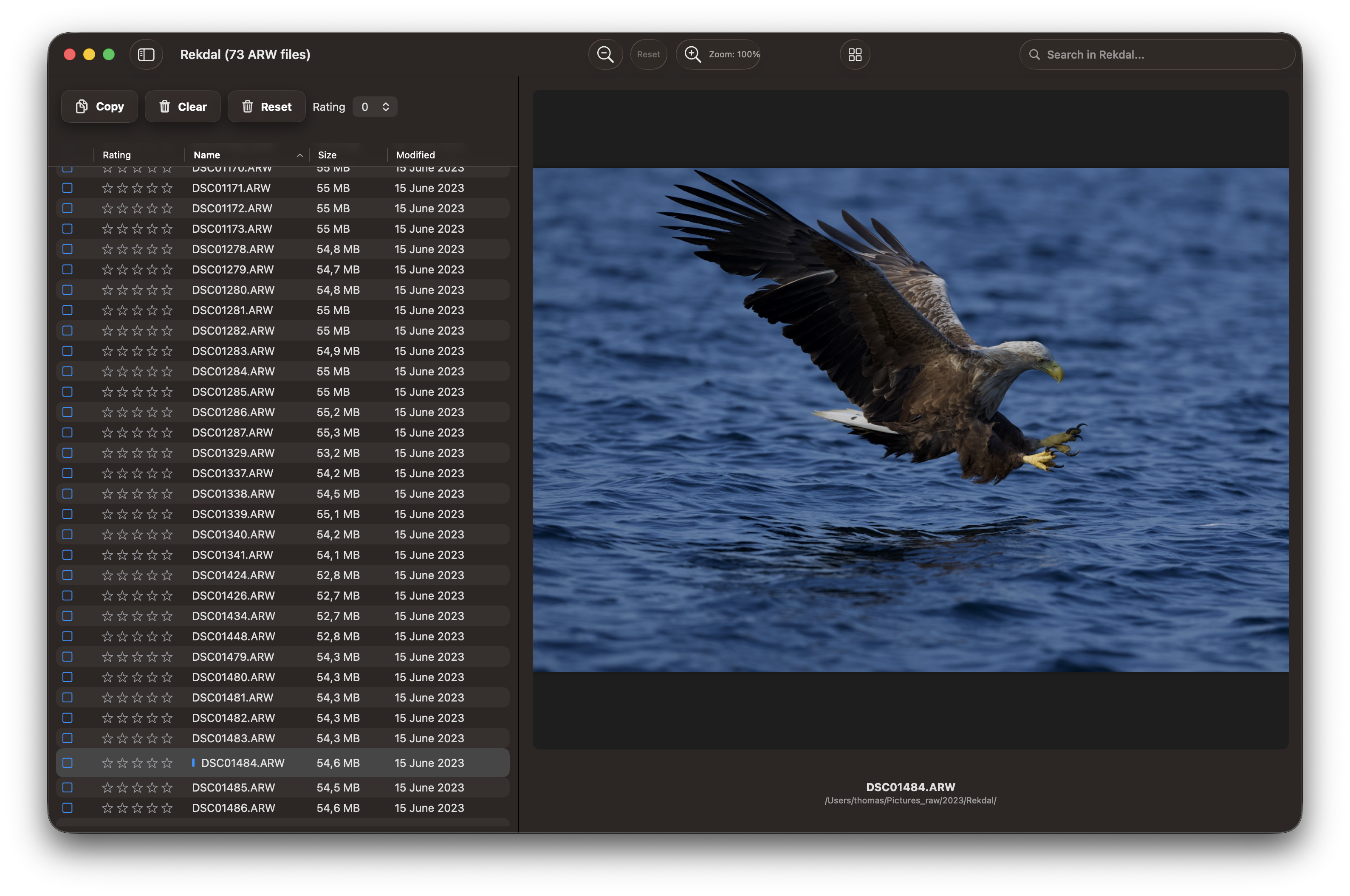
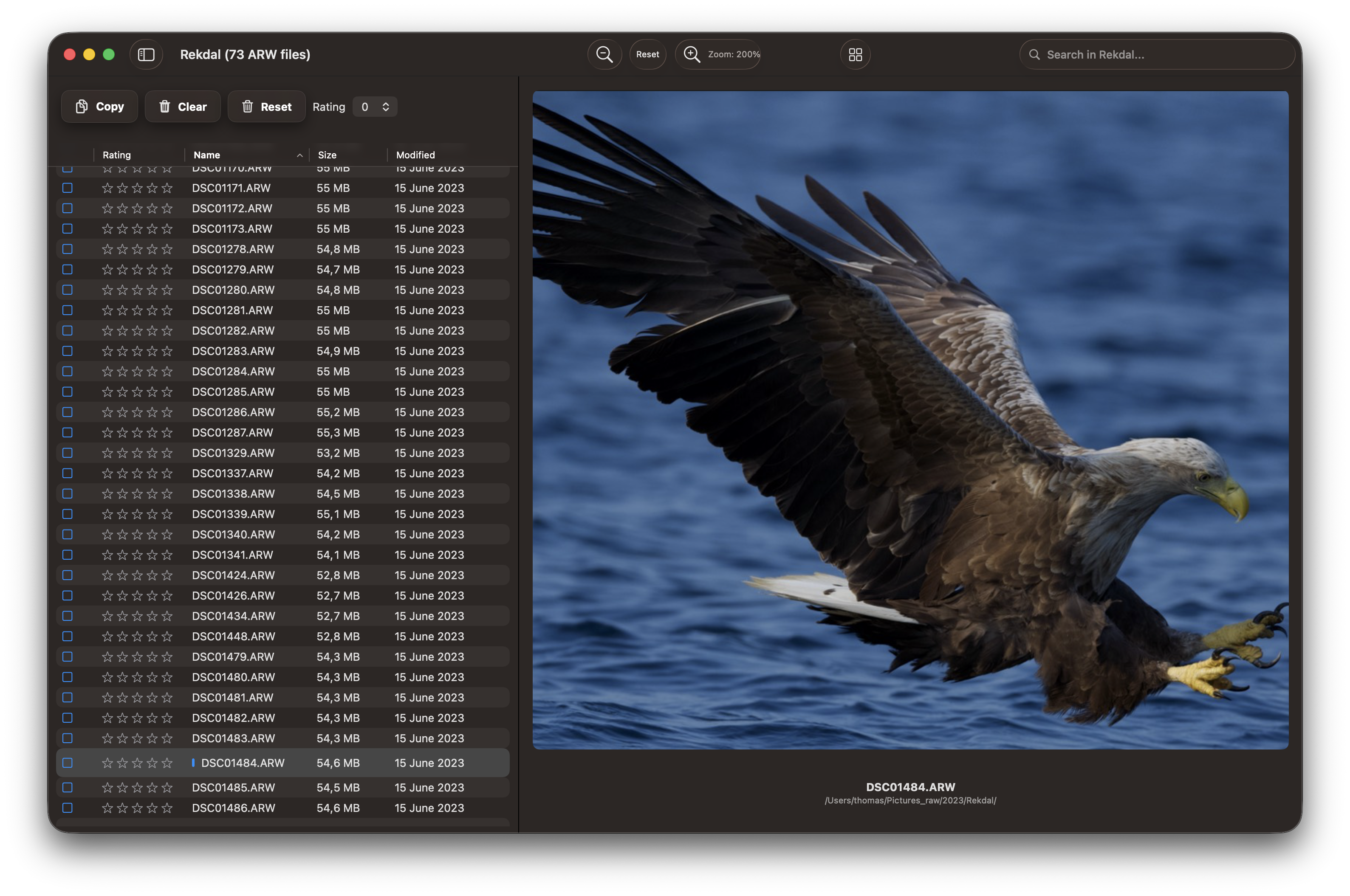
JPG-view
RawCull can extract and display the embedded JPG preview from Sony ARW files for quick review:
- Fast Preview Access: View the JPG preview embedded in your RAW files without full RAW processing
- Lightweight Viewing: JPG previews load instantly, ideal for rapid browsing through large catalogs
- Zoom Capability: Inspect details by zooming into the JPG preview to assess sharpness and composition
- Exported JPG Files: RawCull can generate standalone JPG files (approximately 10 MB each, downsampled 50%) from ARW files for external viewing
- macOS Integration: Generated JPG files can be opened in macOS Photo Viewer or other applications
- Collaborative Sharing: Share JPG previews with colleagues or clients without requiring RAW file support
The JPG-view feature provides a convenient way to quickly evaluate photos or create shareable previews while preserving your original RAW files for final editing.
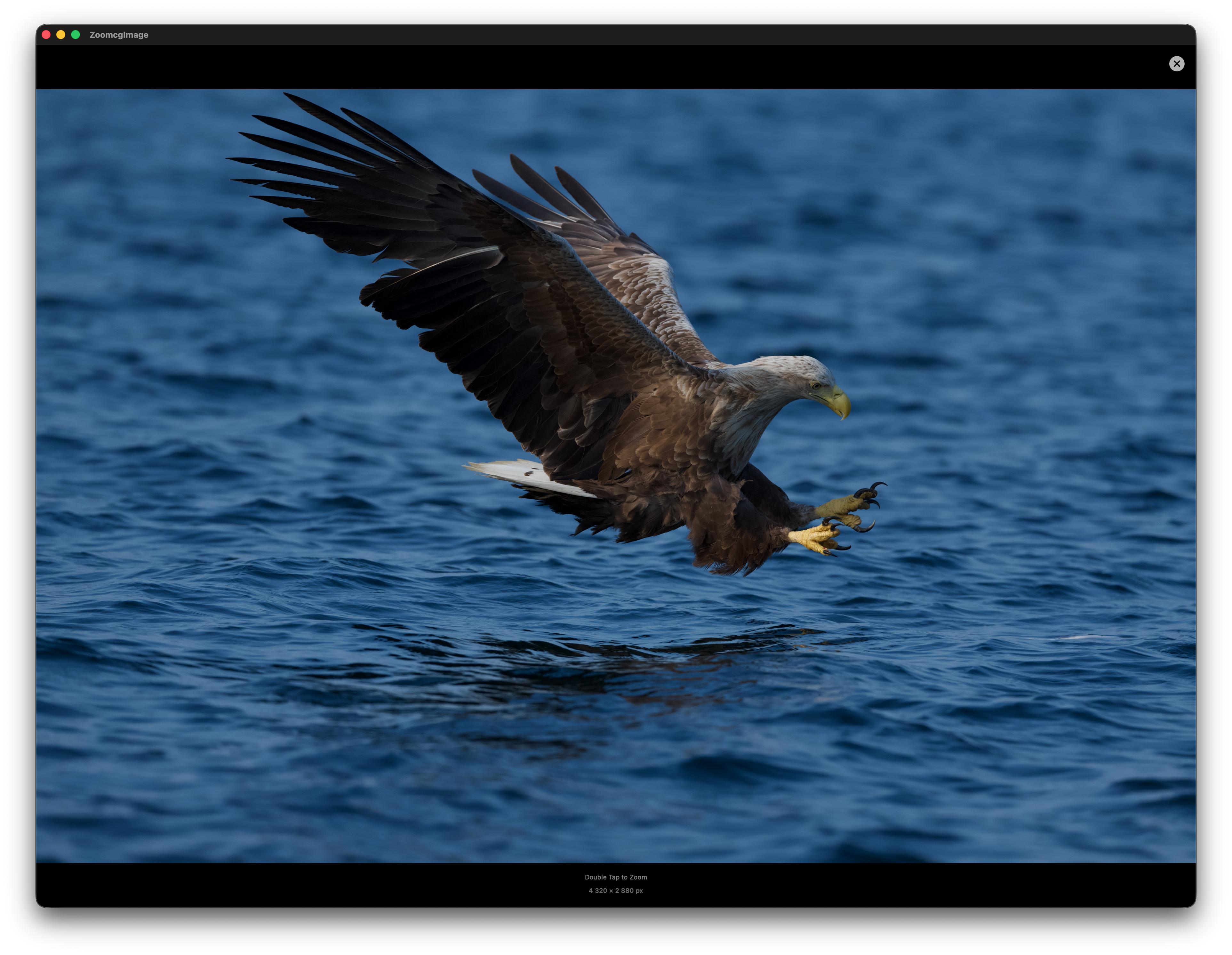
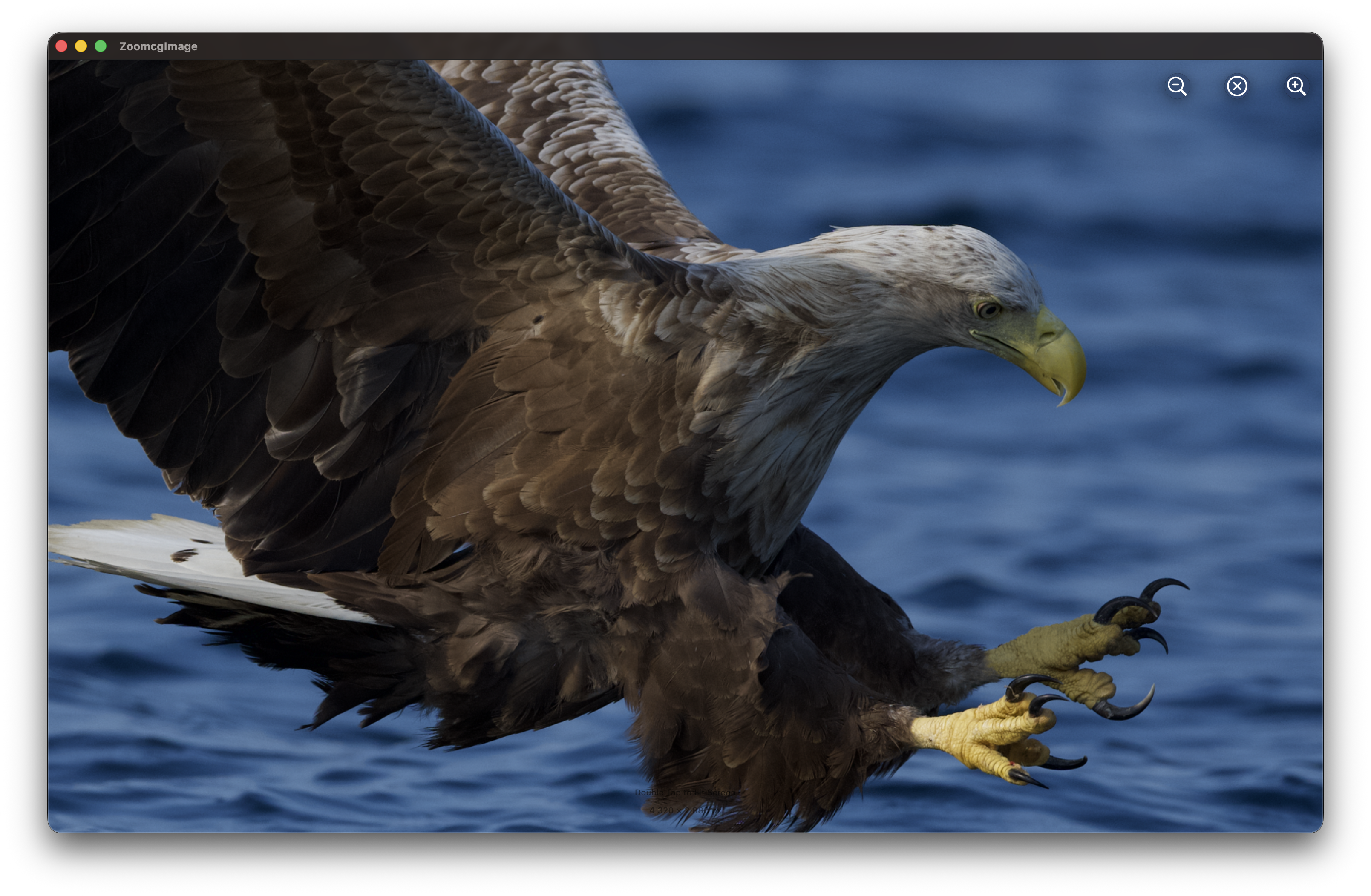
Main and JPG-view
For comprehensive photo evaluation, RawCull allows you to view both the RAW preview and extracted JPG side-by-side:
- Dual View Mode: Compare the RAW render with the embedded JPG preview simultaneously
- Quality Comparison: Evaluate differences between RAW processing and the camera’s JPG rendering
- Synchronized Navigation: Both views stay in sync as you browse through your photo library
- Independent Zoom: Zoom into different areas of each view to inspect specific details
- Workflow Flexibility: Switch between single and dual view modes depending on your current task
- Decision Confidence: Make more informed culling decisions by seeing both representations of your photos
This dual-view capability is particularly useful for evaluating exposure, color rendition, and overall image quality before committing to your final selections.
Grid View