RawCull is a native macOS app for reviewing RAW photos before editing. It shows fast previews and camera information, records picks and ratings, groups similar frames, and copies the selected files to an editing folder.
This guide describes the RawCull 3.2 workflow. It requires macOS 27 (Golden Gate) and an Apple Silicon Mac. Optional AI features run locally for semantic search, visual similarity, and deeper analysis of selected photographs. See Release Notes for version-specific changes; a development changelog does not confirm App Store availability.
RawCull is a photo-culling app, not a photo editor. Its tools are designed to help you decide which photographs to keep.
RawCull does not edit or delete the source photos.
Select Add Catalog and choose a folder of RAW files.
Review the photos in Loupe or Grid view.
Press P to keep, X to reject, or 2–5 to rate a photo.
Use Sharpness, Similarity, or AI Analysis when you need help comparing candidates.
Select Copy, choose all rated photos or a minimum rating from 2 to 5, and choose your editing folder. Check the Dry run result before copying.
Ratings, sharpness results, and catalog state are saved automatically on your Mac.
Main Views
View
Purpose
Loupe
Browse a list and inspect one photo at a time
Grid
Rate, filter, and select many thumbnails
Similarity
Analyze bursts and review suggested frames
Semantic Search
Find locally indexed photos using a written description
AI Analysis
Review selected or rated photographs with SAM 3 + CLIP, Qwen Vision, or Objects
Rated
Show photos with saved culling data
Compare
Inspect up to four selected photos closely
Requirements and Supported Files
macOS 27 (Golden Gate)
Apple Silicon Mac
Sony ARW catalogs
Nikon NEF catalogs (experimental)
Sony ARW is the primary format. Some functions depend on camera metadata and the RAW support available in macOS. Demosaiced RAW previews and exports are Sony-specific; RawCull uses embedded previews when RAW development is unavailable.
For a bug report, include the app version, macOS version, camera model, file format, and steps that reproduce the problem. Contact details are on the About page.
1 - Culling Photos
RawCull records decisions without changing source photos. Add a folder as a catalog, then use Loupe to review one photograph at a time or Grid to work with many photographs.
Rate and Navigate
Key
Action
P or 0
Mark as keeper
X
Reject
2–5
Set star rating
T
Set the default 3-star rating
Arrow keys
Previous or next photo
Z
Open the embedded JPG at actual-pixel view
These shortcuts apply to the catalog culling workflow. In Burst Review, P means previous frame; use the shortcut help for the active view.
A rating key saves the decision and advances to the next photograph. The colored toolbar controls filter what is shown; they do not change ratings.
In Grid view, use Command-click to select separate photographs or Shift-click to select a range. A rating key applies to the selection. Select two or more photographs and choose Compare to inspect up to four together.
Inspect a Photo
Double-click a thumbnail to open the full-window viewer. From there you can zoom, rate, show focus aids, and switch between the embedded JPG and a developed RAW preview when supported.
Open the information panel to see the histogram, culling evidence, file and camera details, and quick actions for the selected photograph.
Useful viewer keys are +/- for zoom, J for embedded JPG, R for developed RAW, F for focus mask, A for focus point, and Escape to close.
Copy Selected RAW Files
Choose Copy, select a destination, and copy either all rated files or files at or above a rating from 2 to 5. Dry run is enabled initially so you can check the result before copying.
RawCull copies files with the system rsync tool. It does not delete source files, and existing newer destination files are not overwritten.
Export JPGs
Select one or more photos and use Actions > Extract JPGs (Command-J). You can export the embedded JPG or, for supported Sony files, a demosaiced RAW JPEG. The developed source may be labelled RAW 9 when the installed decoder supports the selected file. Choose a destination folder before starting.
Sharpness scoring estimates image detail and sorts stronger candidates first. It is a comparison aid, not an automatic reason to reject a photograph.
Score Photos
Open Grid view.
Choose Score AF Sharpness in the 3.2.8 workflow. Earlier versions label the action Score Sharpness.
Enable the sharpness sort to show stronger candidates first. In the 3.2.8 workflow, AF-point sharpness sorts by measured detail around the camera autofocus location.
For AF-point sorting, files without a usable recorded autofocus location or measurement appear after measured files. The general sharpness and Deep Review scores remain separate comparison aids.
RawCull scores the current multi-selection, the active star-rating filter, or the full catalog. It calibrates the focus threshold for those photographs, then saves the scores and detected subject labels.
Choose Re-score after changing scoring parameters. Canceling a run discards that run’s results.
Scoring Parameters
For normal culling, use Fast quality with Embedded Preview. Use Balanced or High Precision when fine detail matters, and RAW Demosaic only for slower final checks on supported Sony files.
The parameter sheet also controls thumbnail size, border exclusion, subject classification, and how strongly the detected subject affects the score. Larger images and RAW demosaicing take longer.
Good Practice
Compare scores only within the current catalog and scoring setup.
Inspect important candidates at high zoom.
Use Focus Mask to see where RawCull detects detail.
In a burst, combine sharpness with expression, pose, framing, and timing.
The Focus Mask highlights areas with strong edge detail. Use it in the full-window viewer or Compare view to check where a photograph appears sharp.
Press F or use the focus-mask control. For a more detailed check, switch from the small thumbnail to the embedded JPG (J) or developed RAW preview (R) when supported.
Sharpness scoring calibrates the mask threshold for the current catalog. You can adjust it in RawCull > Settings > Focus:
Control
Effect
Threshold
Lower shows more detail; higher keeps only stronger edges
Pre-blur
Reduces fine texture and high-ISO noise
Amplify
Strengthens the visible mask
Erosion
Removes isolated highlighted pixels
Dilation
Expands and joins nearby highlighted areas
The mask is a visual guide. Noise, texture, depth of field, and sharpening in the camera preview can affect the result.
4 - Focus Points
Focus Point shows the autofocus location stored in supported Sony ARW and Nikon NEF metadata.
Open a photograph in the full-window viewer or Compare view, then press A or use the focus-point control. The marker appears only when RawCull can decode a valid focus location for that file.
The point shows where the camera reported focus; it does not prove that the subject is sharp. Use it together with Focus Mask and a high-resolution preview.
Support varies by camera model, firmware, and RAW format. If no marker appears, the file may not contain a supported focus location.
5 - Similarity, Bursts, and Search
Similarity groups visually related frames into bursts and suggests strong candidates. It shortens review while leaving the final choice to you.
RawCull uses DataComp CLIP for visual grouping and semantic search. Install and enable it in Settings > AI before indexing a catalog.
Analyze a Catalog
Open Similarity.
Choose Analyze Bursts.
Open Needs Review when analysis finishes.
RawCull runs any missing sharpness scoring and CLIP indexing automatically. Use Re-index after the catalog changes or when you want to rebuild the analysis.
Re-index after updating DataComp CLIP or changing the catalog so RawCull can
create compatible embeddings for every photo.
The similarity slider controls grouping: lower values make tighter groups; higher values include more related frames.
Review Bursts
Each group can include a suggested pick and supporting sharpness or subject information. Open a group to inspect its filmstrip, rate frames, defer the group, mark it reviewed, or open Compare for a closer view.
Use Set pick to override the suggestion. One-click Keep Best rates the suggested frame 3 stars and rejects the other frames; Keep Top Two rates the first two candidates 3 and 2 stars and rejects the rest. Review the suggestion before applying either action.
The main queues are:
Queue
Purpose
Needs Review
Bursts still awaiting a decision
Deferred
Groups saved for later
Marked Reviewed
Groups you have checked
Single Images
Photos outside multi-frame bursts
Analysis results are cached for the catalog. Ratings and manual picks are saved with the rest of the culling data.
For deeper model-based review, select photographs in Grid View and open AI Analysis. SAM 3 and Qwen operate on the selected set rather than on every catalog photograph.
Semantic Search
After DataComp CLIP indexing finishes, enter a short English description such as bird in flight or backlit portrait. RawCull ranks the catalog by relative text-to-image similarity. The ranking is not a confidence score, so inspect the results before making culling decisions.
6 - AI in RawCull
Start with the AI review workflow, then explore local models, downloads, and licences.
RawCull uses local AI at two stages: fast CLIP indexing across the catalog, followed by SAM 3 and Qwen review of selected candidates. Ordinary browsing and rating do not require the optional models.
AI Step by Step is the practical guide: narrow down a catalog, choose finalists, and review them in each AI tab.
AI Analysis explains model roles, catalog indexing, downloads, and licences.
AI Screenshots shows the controls and results for all three tabs.
A practical workflow for using Burst Review, SAM 3 with CLIP, Qwen Vision, and Objects to review selected photographs.
RawCull uses three local AI models. Each has a different job:
Model
What it is
What it contributes
CLIP
An image-and-text embedding model
Recognizes visual similarity, helps form burst groups, and can identify a broad subject such as a person, bird, or animal.
SAM 3
A prompt-guided segmentation model
Draws a mask around the subject so RawCull can measure detail on the important part of the photograph instead of the whole frame.
Qwen Vision
A vision-language model
Reviews the visible photograph and comments on composition, exposure, subject visibility, expression, obstructions, strengths, and problems.
In Deep Review, SAM 3 and CLIP work together. CLIP suggests what the
subject is; SAM 3 uses that information to find the subject; RawCull then
measures detail inside the mask. If CLIP cannot supply a useful label, SAM 3
can still use the general Subject prompt.
All three models run on the Mac. They advise you; they do not replace your
decision. Before starting, install the models you want under Settings › AI;
SAM 3 also requires acceptance of its licence.
Why analyze only a small set with AI?
CLIP runs quickly enough to index every photograph in the catalog for similarity and semantic search. Its cached embeddings can be reused without processing each image again for every search.
Detailed AI review is much heavier than ordinary thumbnail browsing. SAM 3
must create a subject mask for each photograph, while Qwen examines and
describes one photograph at a time. Running both over every file would spend
time on obvious rejects and repeated frames.
RawCull therefore uses a funnel:
Burst Review quickly reduces the complete catalog.
You keep a small set by selecting images or rating them with two or more stars.
AI Analysis gives those finalists a closer review.
This is both faster and more useful: AI spends its time on the difficult
choices. For a SAM 3 + CLIP batch larger than 12 images, RawCull reviews at
most eight candidates, using the available burst ranking or the current file
order.
1. Begin with Burst Review
Open a catalog, go to Similarity, and choose Analyze Bursts. Open a group from Needs Review to compare its frames in the burst reviewer.
RawCull performs three steps:
Similarity: CLIP creates a numeric image embedding and groups
near-duplicates. If CLIP is unavailable, RawCull can use Apple Vision for
similarity instead.
Sharpness: RawCull measures focus and useful detail. This is traditional
image analysis, not a generative AI opinion.
Ranking: similarity and sharpness evidence are combined to suggest the
strongest frames in each burst.
Start with Needs review. Compare the best-ranked frames, check important
details at a useful zoom level, and make your own decision. Select the
remaining candidates in Grid View, or rate promising images with two or more
stars so that they appear as Tagged images later.
2. Choose the finalists
Open AI Analysis from the toolbar. At the top right, choose one input:
Selected uses the images currently selected in Grid View.
Tagged uses every active-catalog image rated two stars or higher.
Keep this set small. A handful of close candidates is ideal.
3. Run SAM 3 + CLIP
Choose SAM 3 + CLIP, then select a review target:
Auto lets the detected subject guide the mask.
Full Subject checks detail across the complete subject.
Head / Face concentrates on the area that often decides portraits and wildlife photographs.
Choose Run Deep Review. For each candidate, inspect the subject outline,
the Deep score, the normal Sharp score, mask status, AF position, and
any warning in Notes. A high score is useful only when the mask covers the
subject you intended. If the outline is wrong, trust the photograph—not the
number.
Use this review to answer: Which frame contains the best detail on the
subject that matters?
4. Run Qwen Vision
Choose Qwen Vision. The default prompt asks about composition, exposure,
subject visibility, expression, and obstructions. You may replace it with a
specific question, for example: Which visible problems would matter in a
final edit?
Choose Run Analyze. Qwen processes the pending images one at a time and
returns scores plus strengths and issues. It may also report whether eyes are
open when that can be judged from the image.
Use this review to answer: Does the photograph work as a photograph? Qwen
adds a visual critique; it does not participate in burst similarity or SAM 3
subject-detail scoring.
5. Run AI Objects
Choose Objects and keep Selected or Tagged as the input. SAM 3 and Qwen must both show as ready.
Leave Concepts on Automatic for Qwen to suggest concrete subjects in each photograph. If you already know what to look for, choose Specific Concepts and enter short comma-separated terms such as puffin or deer, fawn.
Optionally edit the additional photographic criteria, then choose Analyze [number] Images to process the pending photos. You can cancel a running batch, retry failed results, or clear results from this view.
Select a completed row. Compare the numbered outlines with the original image, then choose an object in the list to inspect its crop and Qwen description. The table also shows discovered concepts, object count, Qwen assessment confidence, and status.
Read the whole-photo summary, per-object visibility and focus notes, relationships, strengths, and problems. Treat the SAM 3 mask score and Qwen assessment confidence as different signals. Check the crop, outline, and wording against the source photo; small or overlapping subjects can be missed or mixed up.
Objects is useful when a frame contains several subjects, such as a deer with fawns or a group of musk oxen. Its numbered crops help you inspect each subject, but the analysis remains advisory. It does not rate, reject, or select a photograph for you.
6. Make the final choice
Use each result to answer a different question:
Your visual judgment: does the pose, timing, and framing match your intent?
SAM 3 + CLIP: is the intended subject masked correctly, and which candidate has useful subject detail?
Objects: are the individual subjects visible, and do their outlines and crops match the photograph?
Qwen Vision: which composition or visibility issues deserve a closer look?
Burst Review: which neighboring frames are worth comparing before you decide?
When the signals disagree, inspect the original preview at a useful zoom level. Focus-map overlap and model confidence do not prove sharpness or photographic quality. Ratings and final picks remain your decision; RawCull does not automatically turn a Qwen result into a rating.
RawCull requires macOS 27 (Golden Gate) and an Apple Silicon Mac.
RawCull provides optional local AI for search and review. All inference runs on the Mac; RawCull does not upload photographs to an external AI service.
How the Models Are Used
RawCull uses three vision models:
DataComp CLIP converts images and text into comparable vectors. RawCull uses those vectors to index every ARW file in a catalog for semantic search, visual similarity, and burst grouping.
SAM 3 locates subjects in selected images. Deep Review uses a subject mask together with sharpness, CLIP, and camera autofocus evidence; Objects keeps separate masks for individual visible instances.
Qwen3-VL assesses selected images against editable criteria. In Objects mode it can suggest object concepts and describe the numbered objects, their relationships, strengths, and possible problems.
CLIP is compact and fast enough to index all ARW files in a catalog. SAM 3 and Qwen are substantially larger and require more computation, so RawCull reserves them for deeper analysis of selected photographs rather than running them across the complete catalog.
AI results are review aids, not automatic decisions. Semantic-search scores describe relative similarity rather than confidence, and the photographer always makes the final selection.
Catalog-Wide CLIP Indexing
DataComp CLIP does not create captions, keywords, or fixed labels while indexing. It converts each image into a normalized numeric embedding that summarizes its overall visual content. RawCull stores that embedding locally and can reuse it for both similarity analysis and semantic search.
Enable DataComp CLIP in Settings > AI, then select Index Similarity or Re-index in Similarity view. Indexing runs the image encoder once for each ARW photograph that does not already have a compatible cached embedding. This catalog-wide index supports both similarity and semantic search without invoking the larger SAM 3 or Qwen models.
CLIP embeddings are specific to the model and its preprocessing configuration. Installing an incompatible model version requires a new index. Similarity and semantic search require compatible DataComp CLIP embeddings.
Select photographs in Grid View, or use photographs rated two stars and higher, then open AI Analysis. This focused workflow avoids the time and computational cost of running the larger models on every ARW file in the catalog.
SAM 3 + CLIP isolates the subject and combines subject-aware detail, sharpness, autofocus, and coverage evidence to rank the selected photographs and recommend a frame.
Qwen Vision evaluates each selected photograph against editable criteria such as composition, exposure, subject visibility, expression, and obstructions. It returns an advisory assessment with scores, strengths, possible problems, confidence, and subject details.
Objects combines SAM 3 and Qwen to find and assess individual visible objects. Choose Automatic to let Qwen suggest concrete concepts, or Specific Concepts to enter comma-separated terms such as bird, deer. SAM 3 draws a separate mask and numbered outline for each retained instance; Qwen then describes the objects and the photograph. The table shows object counts, concepts, Qwen assessment confidence, and status. Select a row, then a numbered object, to inspect its crop and detail.
The numbered overview and crops are views of one source photograph. A SAM 3 mask percentage measures the model’s confidence in that mask; Qwen assessment confidence is a separate judgment. Neither proves that an object was found or described correctly. Check each outline, crop, and description against the original photograph before making a culling decision.
All three analysis modes run locally on the Mac. See AI Step by Step for a practical Objects workflow and AI Screenshots for examples.
Semantic Search
After a catalog has been indexed with DataComp CLIP, enter a short description such as puffin, raven, or squirrel. RawCull ranks the catalog using the cached image embeddings, so later searches do not have to reprocess every image.
Search terms work best in English because DataComp CLIP was primarily trained and evaluated with English text.
Supported Models
RawCull supports DataComp CLIP for catalog-wide similarity and semantic-search indexing, plus SAM 3 and Qwen3-VL for deeper analysis of selected images.
The upstream files on Hugging Face are the source models. RawCull requires model bundles converted and validated for Apple Core AI on macOS 27.
Model Downloads
The AI models are not included in the RawCull application or its release
download. Open Settings > AI and select Download AI Models to view the
available models, their purpose, publisher, version, licence, and installation
status.
Downloads use macOS Managed Background Assets. macOS stores and manages each
asset pack, and its location can change between app launches. RawCull validates
an installed model before enabling it and falls back safely when a required
model is missing or invalid.
Review the licence in the model manager before selecting Download. Progress
and cancellation are shown in the same window. After installation, the models
run locally; photographs are not uploaded as part of downloading or using a
model.
Keeping the models separate makes the application download smaller. It does
not remove the upstream model’s licence conditions. Follow the RawCull release
notes for the model versions supported by each beta or
release rather than installing an arbitrary conversion.
Model Licences
The RawCull application licence does not replace or extend the licences for the separately downloaded models.
The DataComp model page identifies its licence as MIT. Its model card also documents the training data, intended uses, and limitations.
SAM 3 is distributed under Meta’s separate SAM License, not the MIT License. Access to the official Hugging Face files may require signing in, sharing the requested contact information, and accepting Meta’s terms.
Review the complete licence and model card shown by RawCull before downloading
or using a model. RawCull records the exact model revision and licence version
applicable to each converted bundle. If a model update changes its licence,
RawCull must present the new terms before downloading that update.
7 - Screenshots
A visual tour of Loupe, Grid, focus overlays, and burst review in RawCull.
See how RawCull displays photographs, compares similar frames, and supports focus checks and burst decisions.
For the three AI Analysis tabs and model setup, see AI Screenshots.
7.1 - Screenshots
This visual tour follows a puffin catalog through photo inspection, grid comparison, focus checks, and burst review. For detailed analysis of selected photographs, see the separate AI Screenshots section.
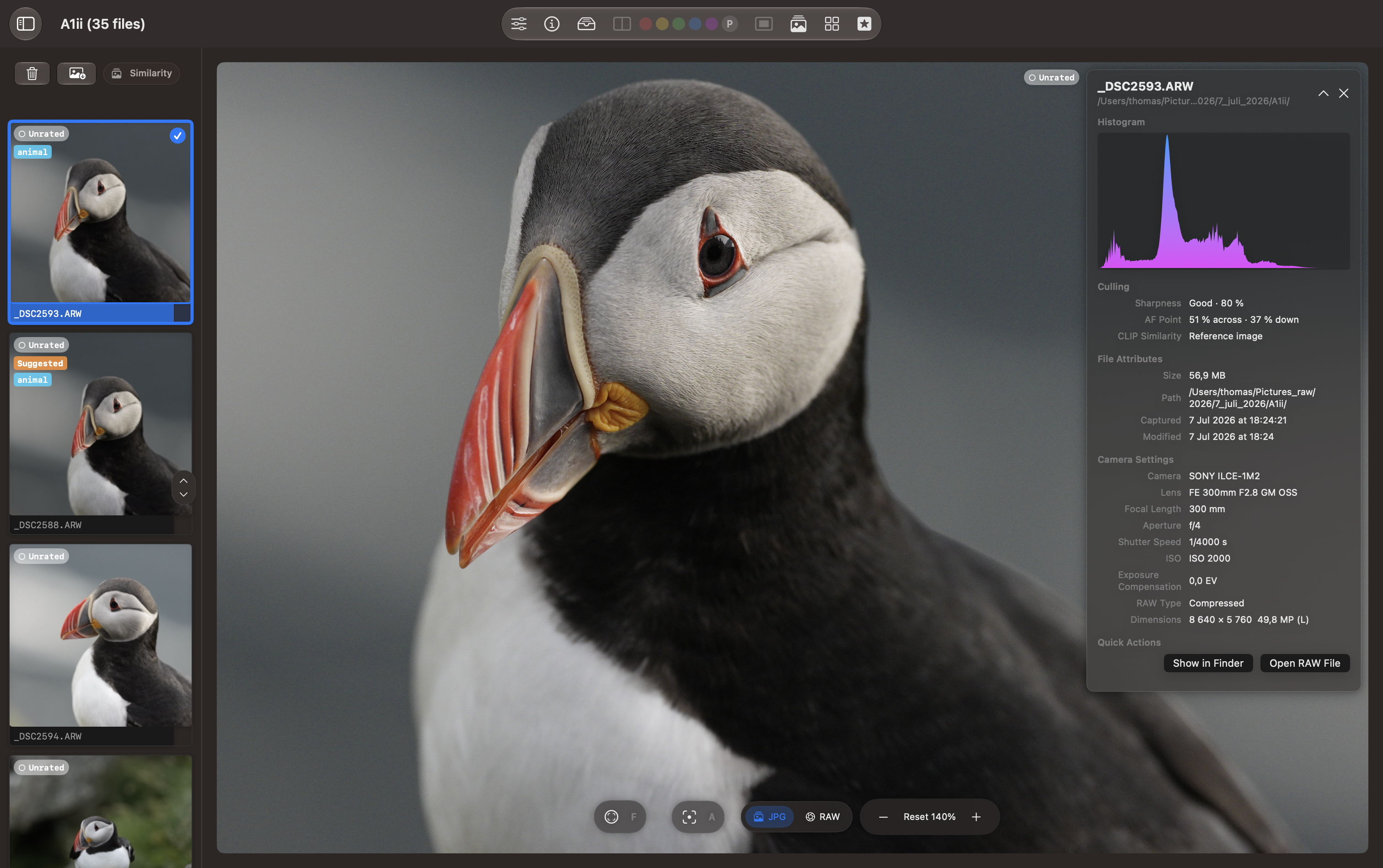
Loupe View
The Loupe view shows a large puffin-in-flight preview beside a vertical strip of nearby photographs. The selected thumbnail has a blue border, and the visible photos are marked Unrated.
The open information panel shows the histogram, camera autofocus location, file attributes, and camera settings, with Show in Finder and Open RAW File actions. Controls below the preview provide focus overlays, JPG/RAW selection, and zoom adjustment.
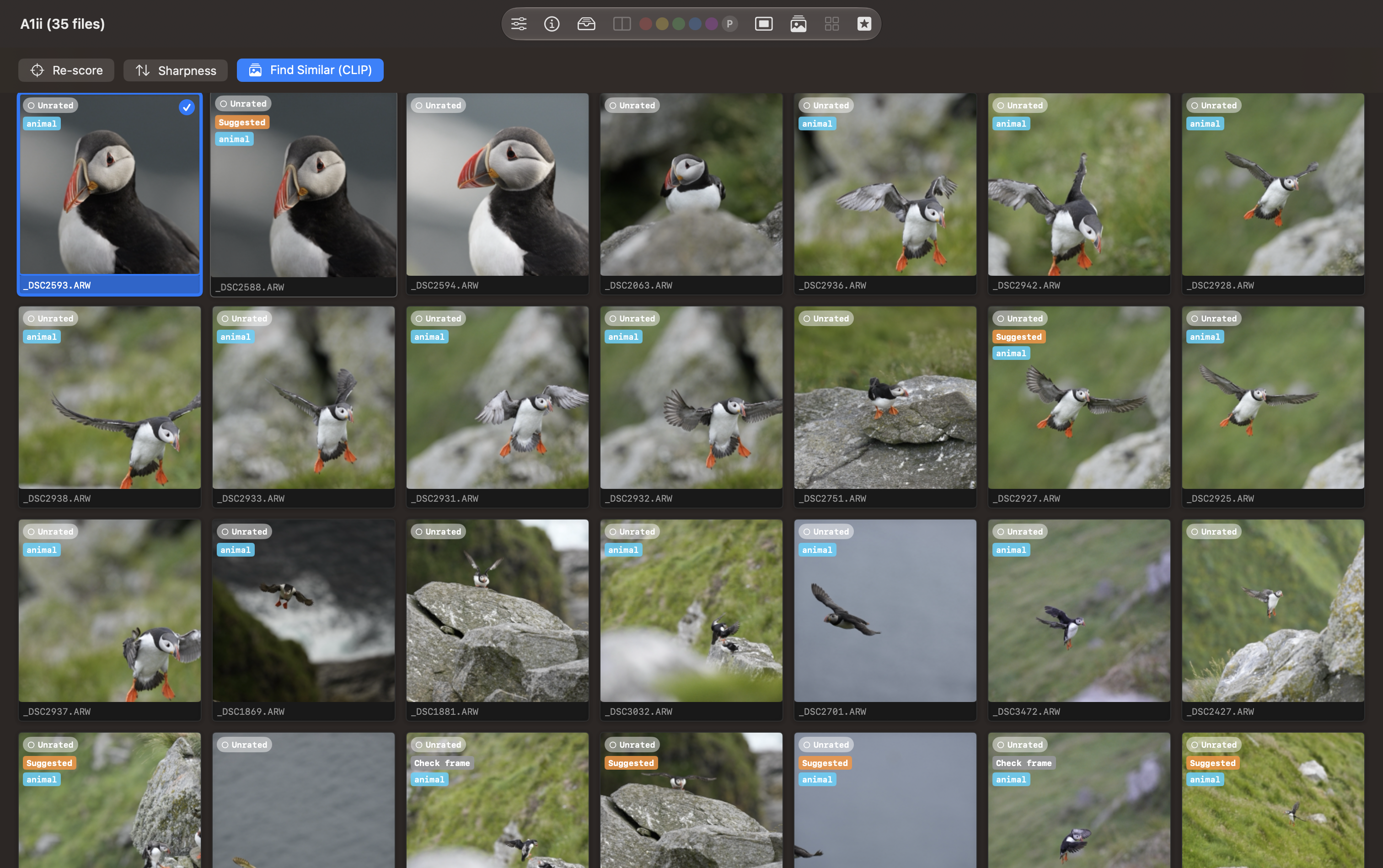
Similar Photos in Grid View
With Find Similar (CLIP) active, the grid brings visually related photographs together around the selected puffin-in-flight frame. Similar flight poses appear first, followed by other puffin views. The blue border identifies the selected image; each card shows its filename and rating.
Use this arrangement to compare wing position, framing, and timing across the catalog.
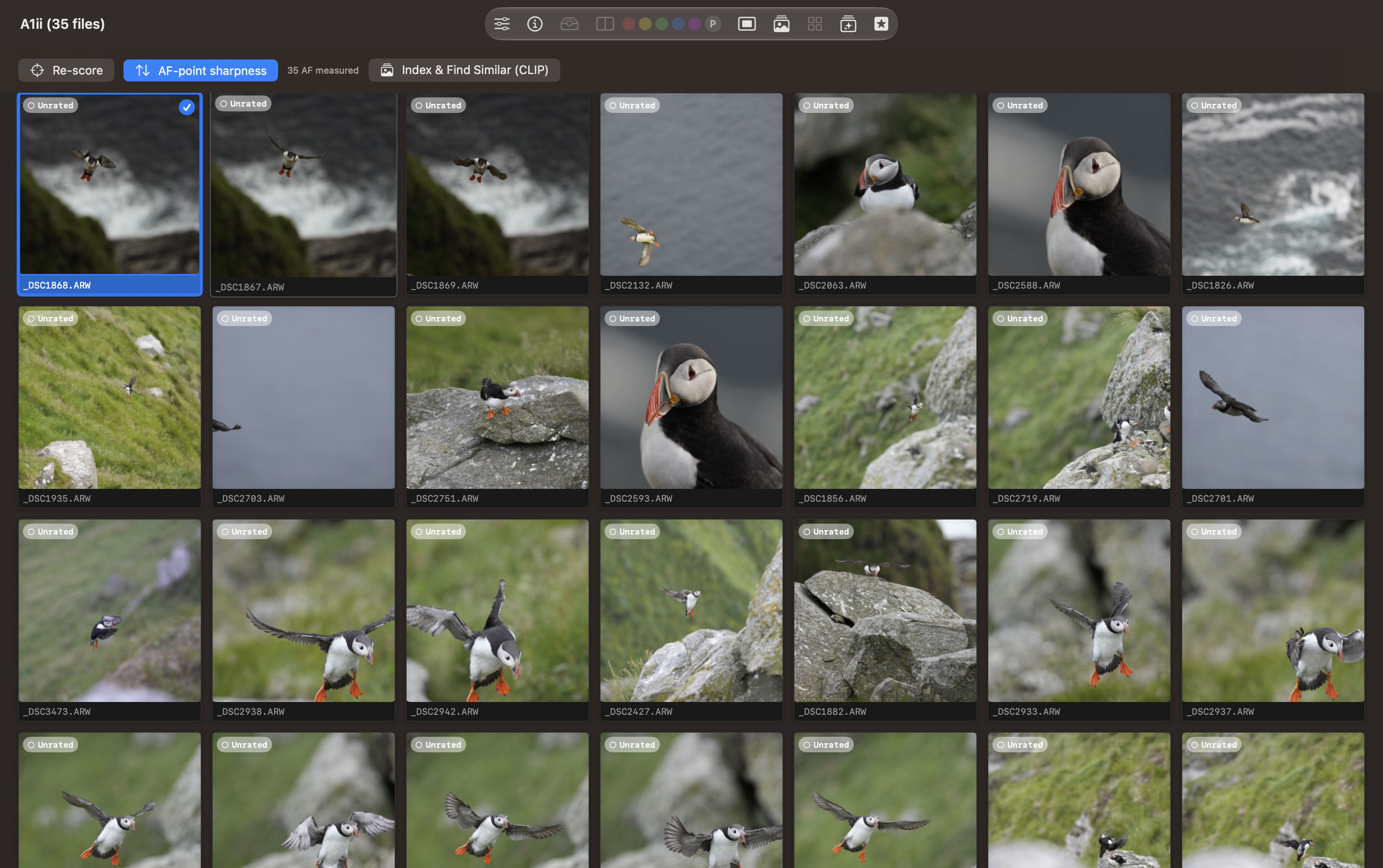
Grid View by AF-Point Sharpness
The second grid has AF-point sharpness active and reports 35 AF measured. The order differs from the similarity view because it prioritizes measured detail around the camera autofocus location. Re-score reruns scoring, while Index & Find Similar (CLIP) provides access to visual similarity.
Use the ranking to choose candidates for closer inspection, then check the subject at a useful zoom level.
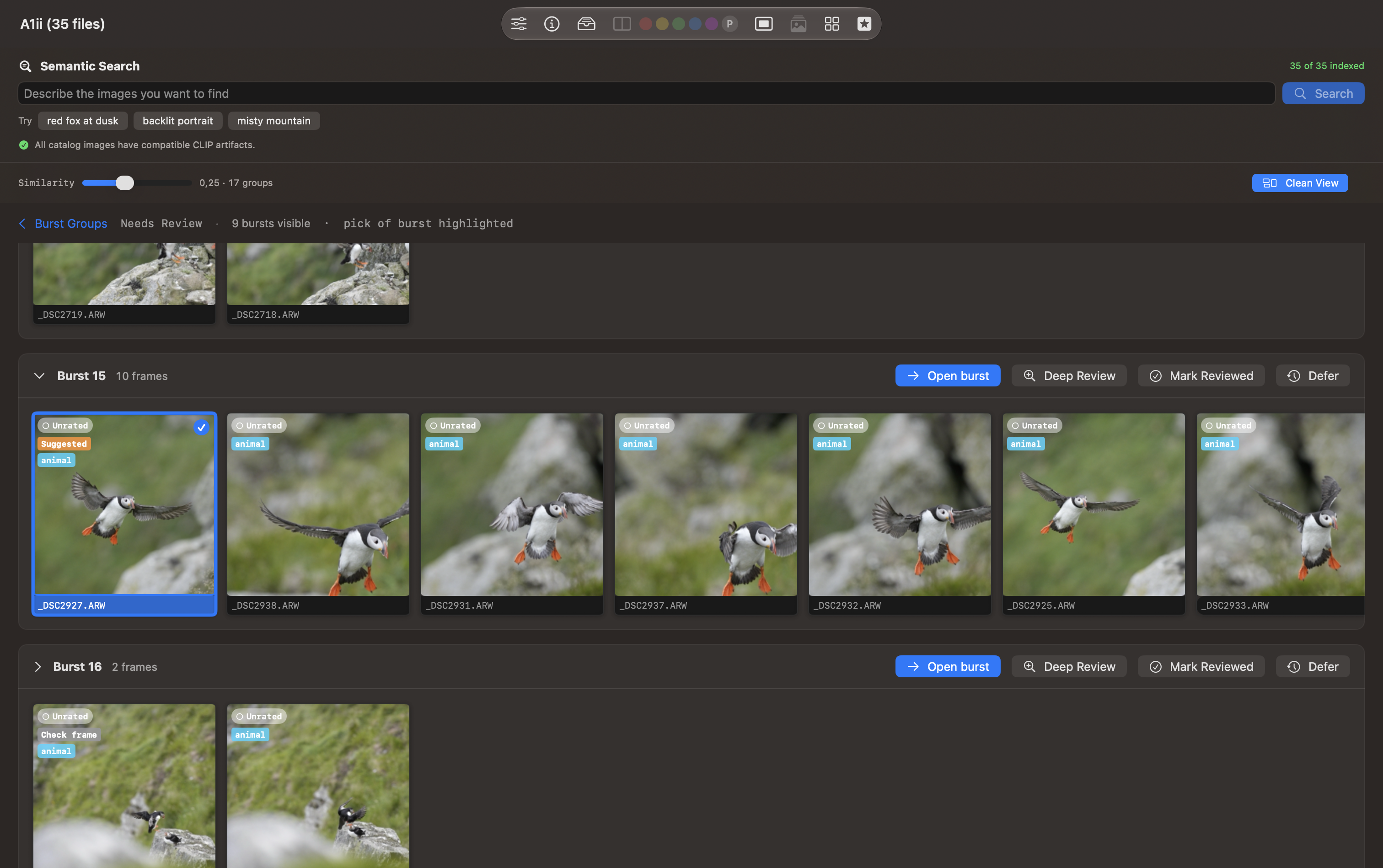
Burst List
The Needs Review list shows grouped puffin sequences. Burst 15 contains ten frames, with the suggested pick highlighted in blue and labelled Suggested. Each burst provides Open burst, Deep Review, Mark Reviewed, and Defer actions.
Above the groups, the similarity slider controls grouping. The Semantic Search area reports that all 35 catalog images are indexed and have compatible CLIP artifacts; its search field accepts a description of the photographs you want to find.
Focus Point, Focus Mask, and Subject Outline
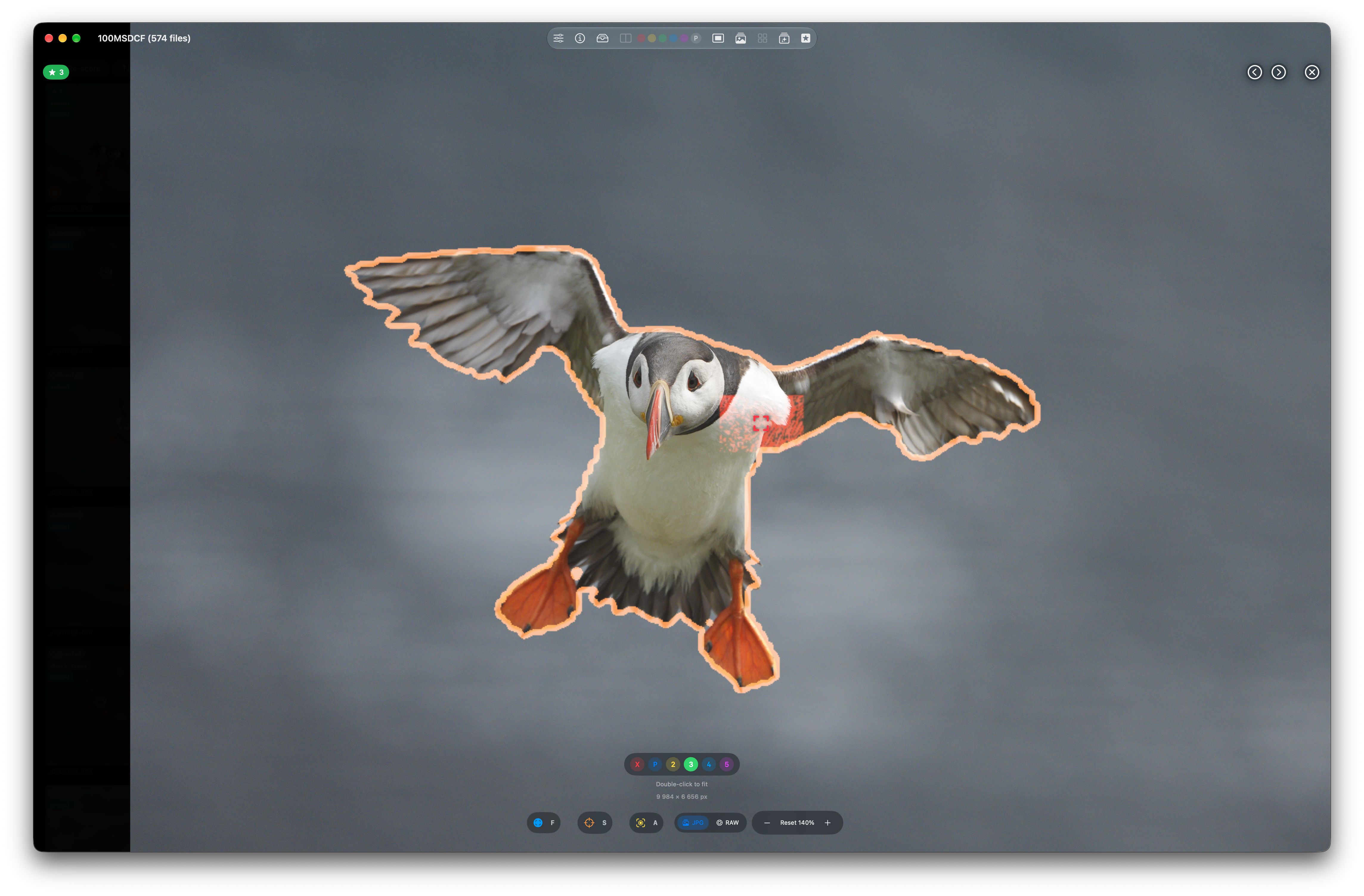
The full-window viewer shows a puffin in flight with an orange subject outline, a red camera autofocus marker, and highlighted focus-map detail near the shoulder. The photograph is rated three stars. Rating buttons, overlay controls, JPG/RAW selection, and zoom controls remain available beneath the image.
The autofocus marker records where the camera focused; the focus mask highlights detected edge detail. Compare those locations with the part of the bird that matters to you. An outline or overlap alone does not confirm sharpness.
Burst Review
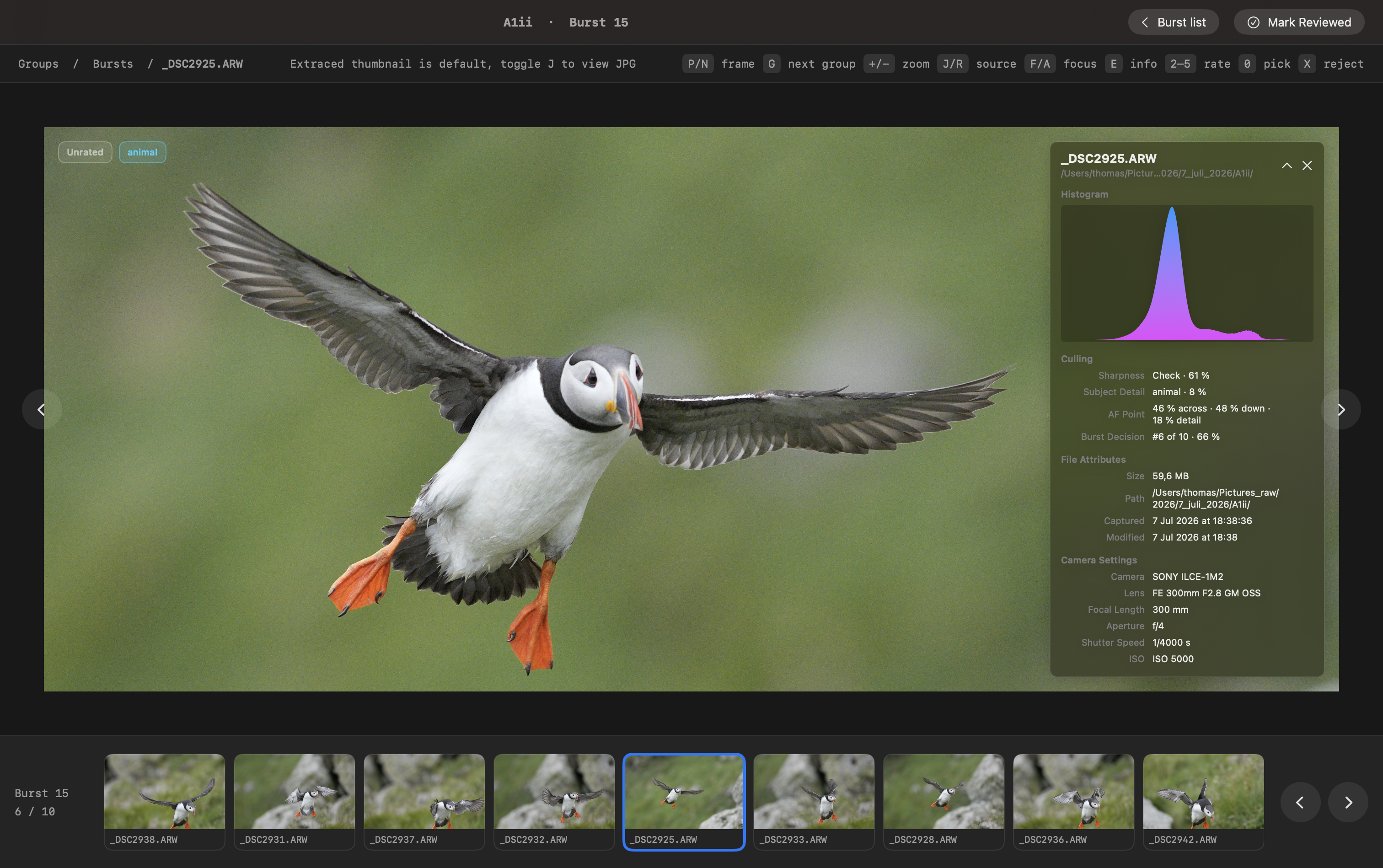
The burst reviewer opens Burst 15 with a large preview and a ten-frame filmstrip below it. The selected first frame is labelled Suggested and Unrated. The information bar shows its position in the burst, sharpness and overall scores, histogram, and exposure settings.
Move between frames to compare pose and detail, then rate a photograph, set a pick, or reject it. Burst list returns to the grouped overview, and Mark Reviewed records that you have checked the burst.
For photo browsing, focus overlays, and burst review, see Screenshots.
8.1 - AI Screenshots
AI Analysis offers three tabs for reviewing selected photographs:
SAM 3 + CLIP compares subject detail and ranks candidates using masks, sharpness, and autofocus evidence.
Qwen Vision assesses the photograph against editable criteria and reports scores, strengths, and issues.
Objects finds individual subjects, outlines them, and provides crops and descriptions with focus evidence.
All three run locally on the Mac. The examples below use the same four deer photographs, with Selected (4) active and Tagged (0) showing no photographs rated two stars or higher. The filmstrip at the bottom keeps the selected set in view. For the workflow, see AI Step by Step.
CLIP — all catalog images: CLIP runs quickly enough to analyze every image in the catalog. Its saved image embeddings support similarity, burst grouping, and semantic search.
SAM 3 and Qwen — selected photographs: These models require substantially more computation, so AI Analysis uses a smaller set of candidates selected in Grid View or rated two stars and higher. Use them for a closer review after narrowing down the catalog.
SAM 3 + CLIP
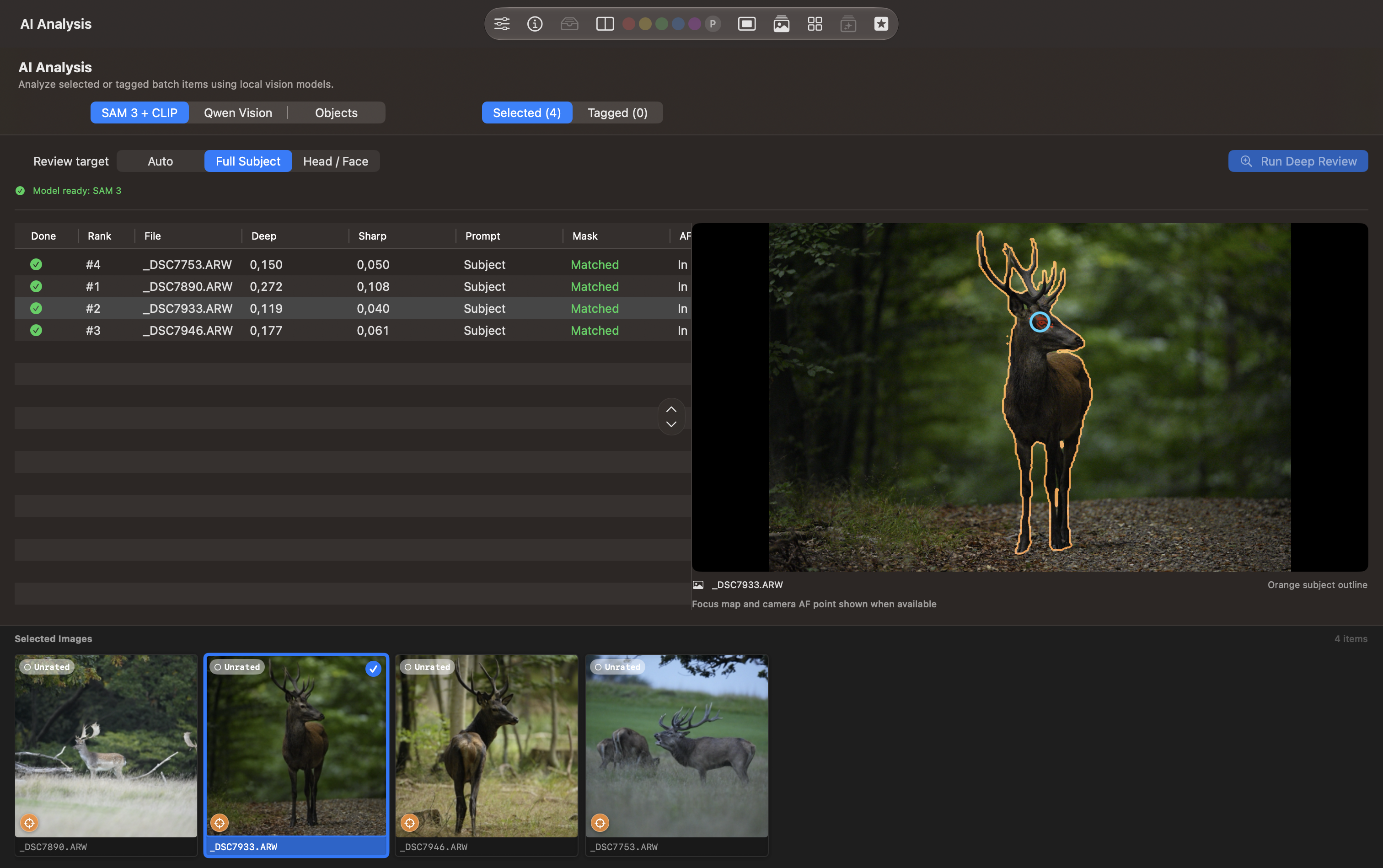
The SAM 3 + CLIP tab shows a completed Deep Review with Full Subject selected. Auto and Head / Face are the other review targets, and the green readiness indicator confirms that SAM 3 is available. Run Deep Review starts the review.
The table lists completion, rank, filename, Deep and Sharp scores, the subject prompt, mask status, and autofocus evidence. All four rows show Matched masks. The highlighted file, _DSC7933.ARW, is ranked second; _DSC7890.ARW is ranked first.
On the right, the selected stag has an orange subject outline and a camera autofocus marker near its eye. Check that the outline follows the intended subject before relying on the ranking. The Deep and Sharp values represent different measurements and should be read alongside the preview.
Qwen Vision
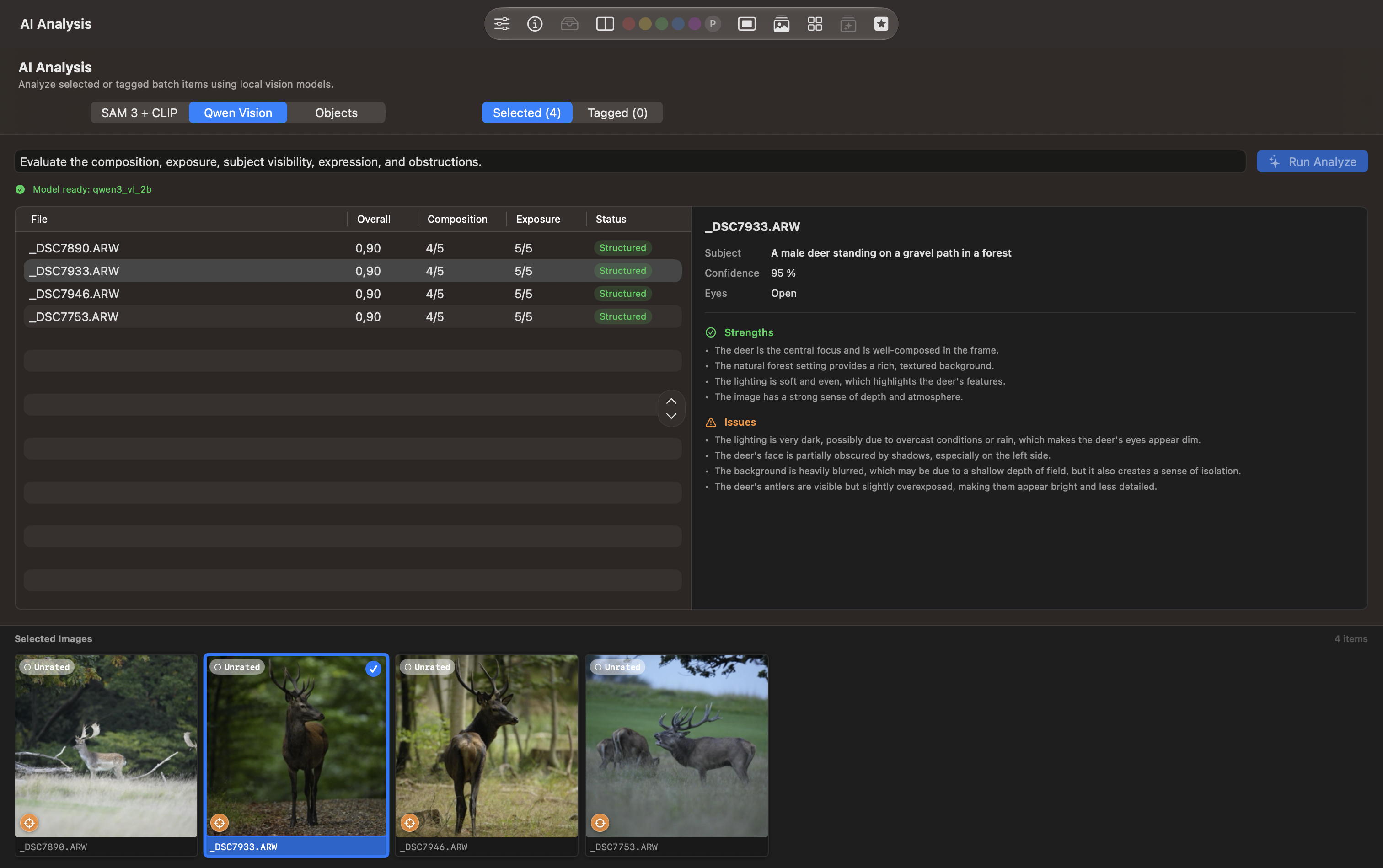
The Qwen Vision tab displays an editable prompt asking about composition, exposure, subject visibility, expression, and obstructions. The green indicator shows the Qwen model is ready, and Run Analyze starts assessment.
The completed table shows Overall, Composition, Exposure, and Status for each file. In this example, all four photographs receive an overall score of 0.90, composition 4/5, exposure 5/5, and Structured status.
The right-hand panel describes the selected stag on a forest path, reports 95% confidence and Eyes: Open, and lists strengths and issues. The strengths mention composition, the forest setting, soft lighting, and depth; the issues mention dark lighting, shadows on the face, background blur, and bright antlers. These are the model’s observations to check against the photograph. Identical scores do not establish that the four frames are equally suitable for your final selection.
Objects
The Objects tab combines SAM 3 masks with Qwen descriptions. Automatic lets the model suggest concepts; Specific Concepts lets you provide the subjects to look for. The additional criteria field asks about visibility, focus, expression, obstructions, and photographic strengths. Both models show as ready.
Numbered Subject Overview
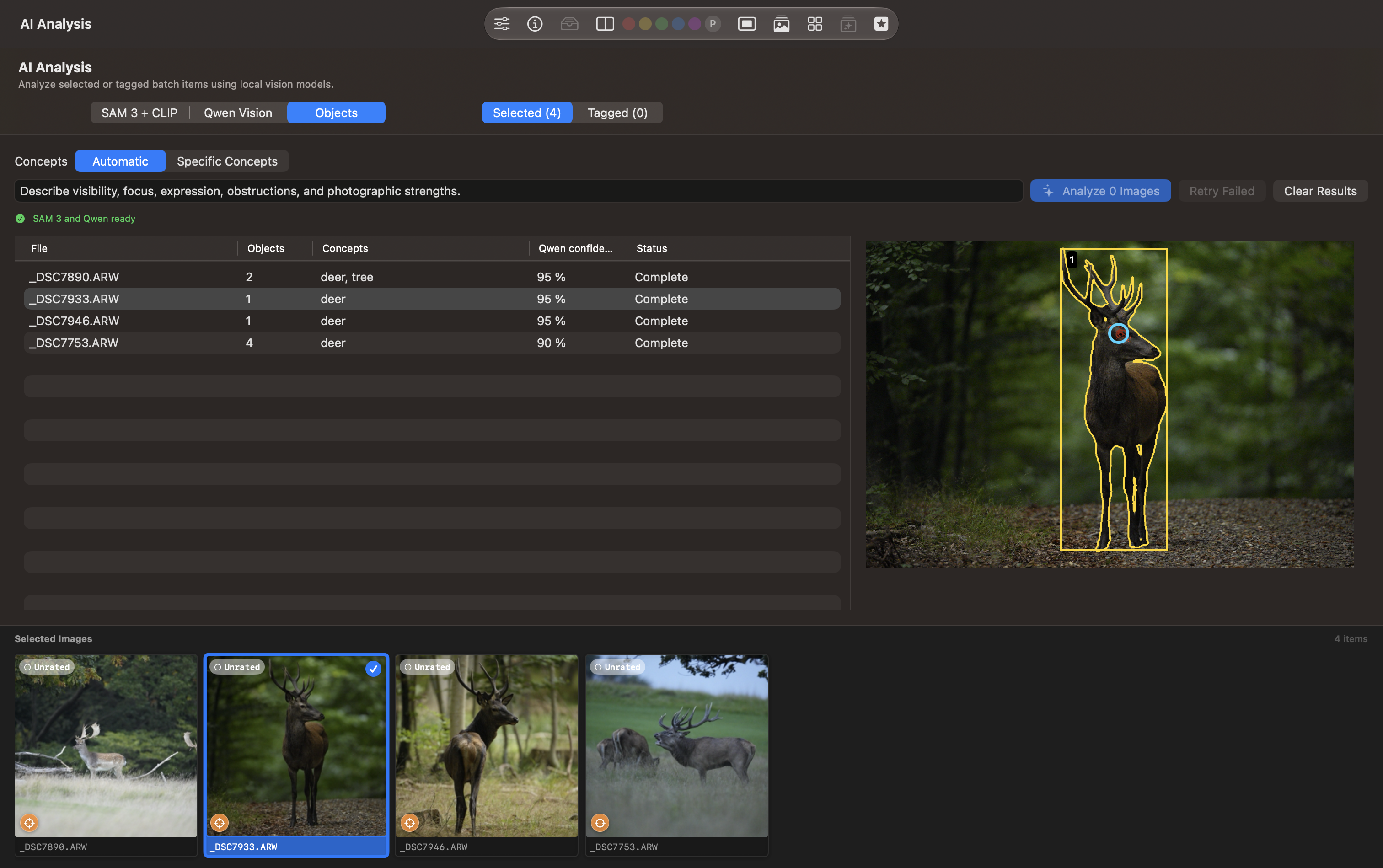
The completed table lists filenames, object counts, concepts, Qwen confidence, and status. The four photographs contain between one and four detected objects. The first row includes the concepts deer, tree; the selected _DSC7933.ARW row contains one deer with 95% Qwen confidence.
The preview marks that stag as Object 1, with a yellow outline and bounding box. Analyze 0 Images indicates that no pending images remain in this set; Retry Failed and Clear Results are also visible.
Object Crop and Mask Evidence
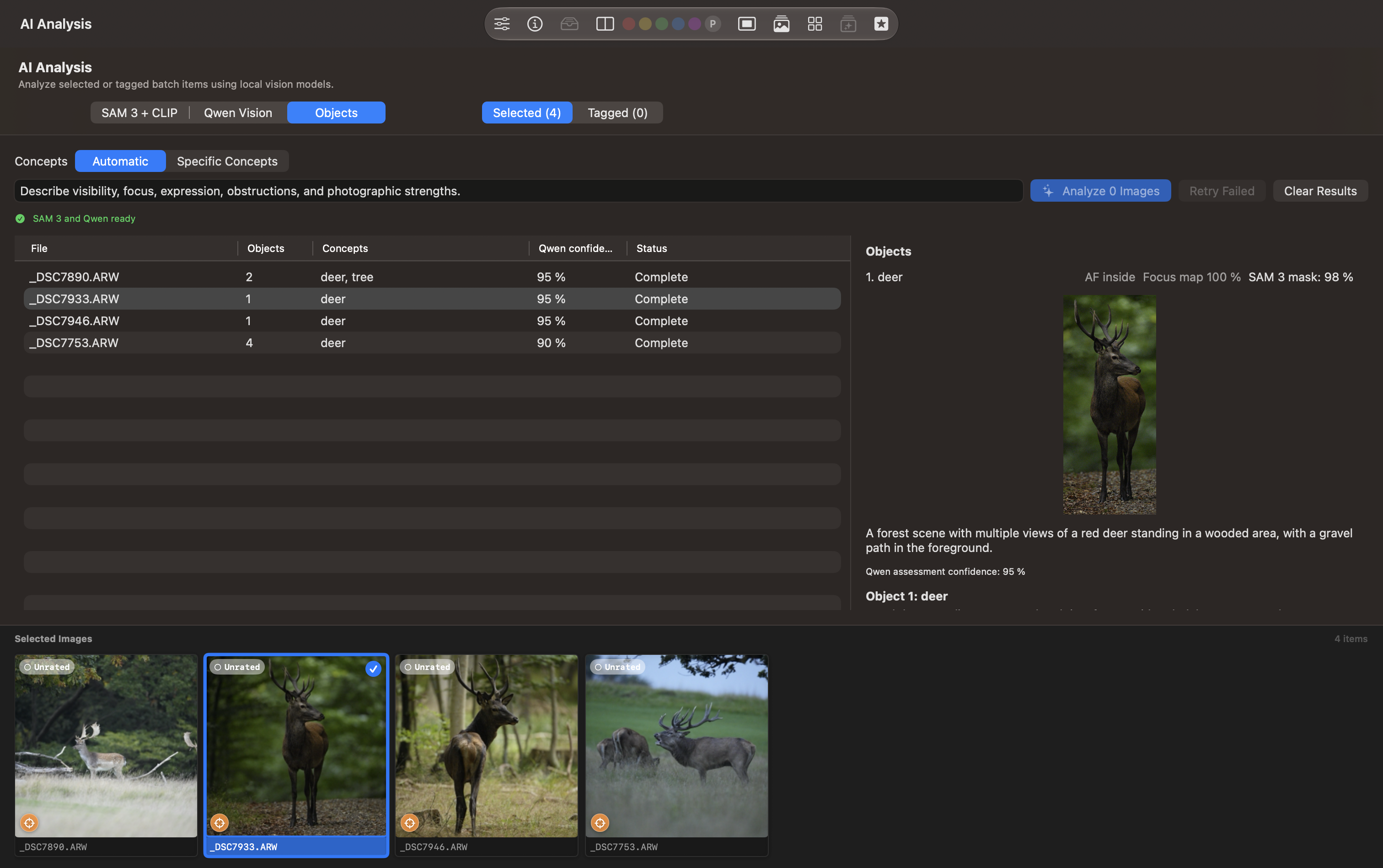
The next screenshot shows the selected object’s crop in the right-hand detail panel. Above it, AF inside, Focus map 100%, and SAM 3 mask: 98% summarize the focus-location and mask evidence. Below the crop are a scene summary and the separate 95% Qwen assessment confidence.
The crop helps you inspect what the mask retained. SAM 3 mask confidence and Qwen assessment confidence describe different model results; neither is a sharpness score or proof that the analysis is correct.
Object Description and Measured Focus Locations
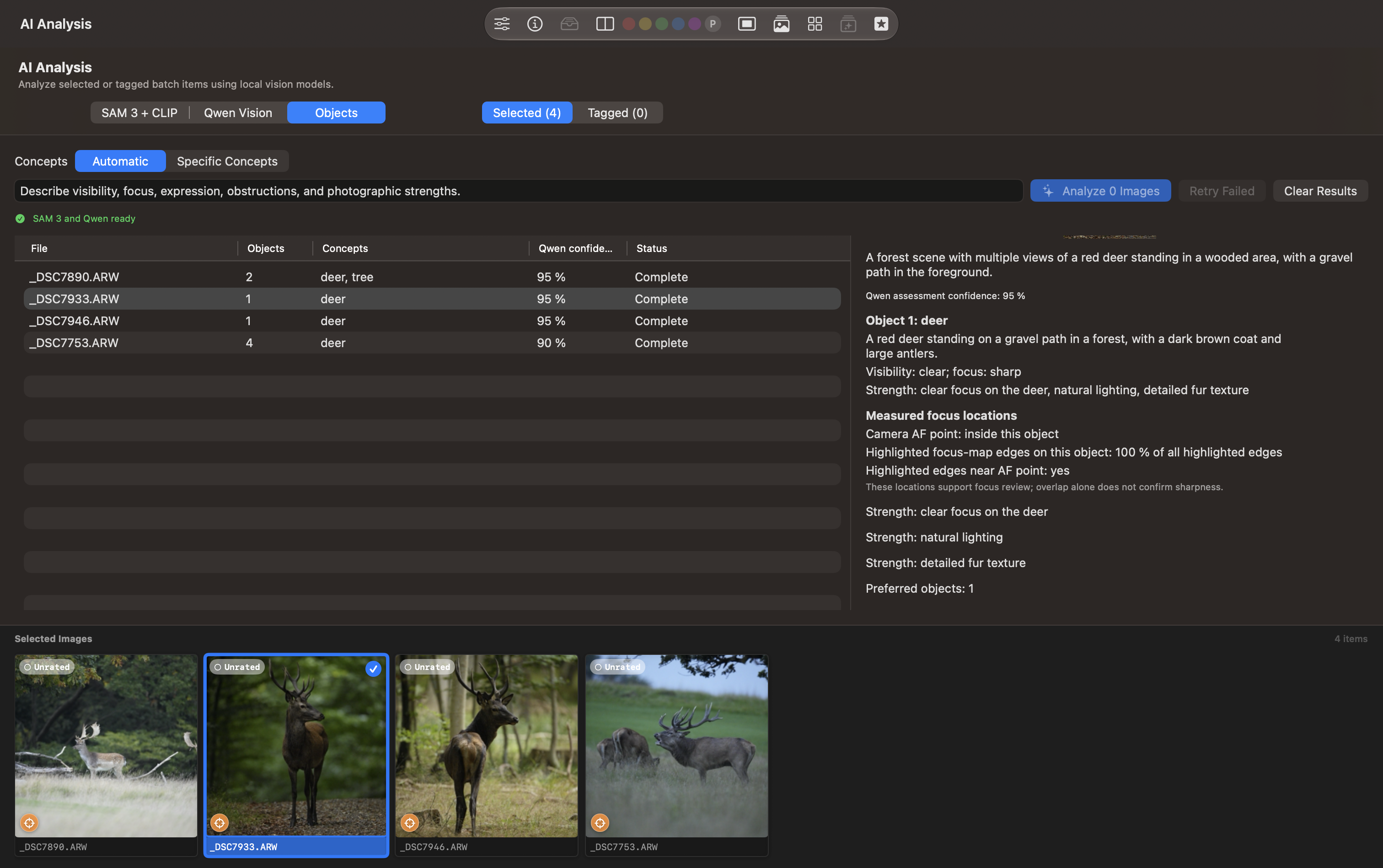
Further down the same detail panel, Qwen describes Object 1: deer, labels visibility as clear and focus as sharp, and lists strengths such as natural lighting and fur texture. Measured focus locations reports that the camera AF point is inside the object, all highlighted focus-map edges are on it, and highlighted edges are present near the AF point.
The panel also lists Preferred objects: 1. Read the model’s description alongside the measured locations and the original photograph. As the panel explains, overlap alone does not confirm sharpness. The summary’s reference to “multiple views” should also be checked: the overview and crop show the same source photograph.
AI Settings
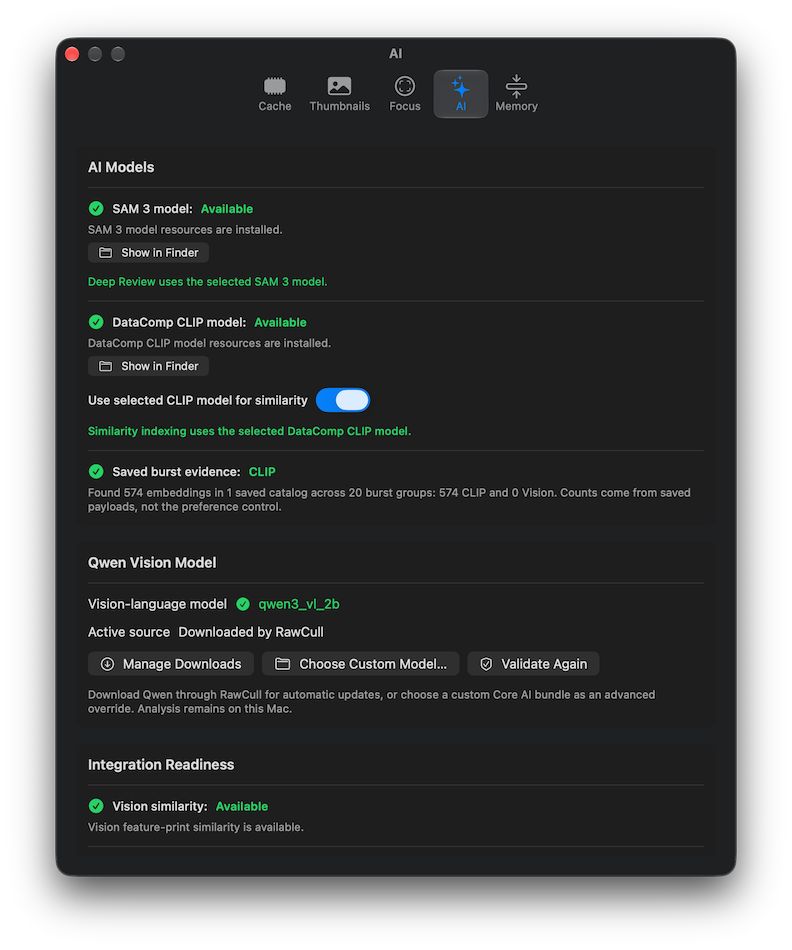
The AI settings tab shows SAM 3 and DataComp CLIP as Available, with Show in Finder controls for their installed resources. Use selected CLIP model for similarity is enabled. The saved burst evidence reports 574 CLIP embeddings in one catalog across 20 burst groups, with no Vision embeddings in that saved data.
The Qwen Vision Model area identifies qwen3_vl_2b and its active source as Downloaded by RawCull. Manage Downloads, Choose Custom Model…, and Validate Again provide model management controls. The Integration Readiness area also shows Vision similarity as available.
Model Downloads
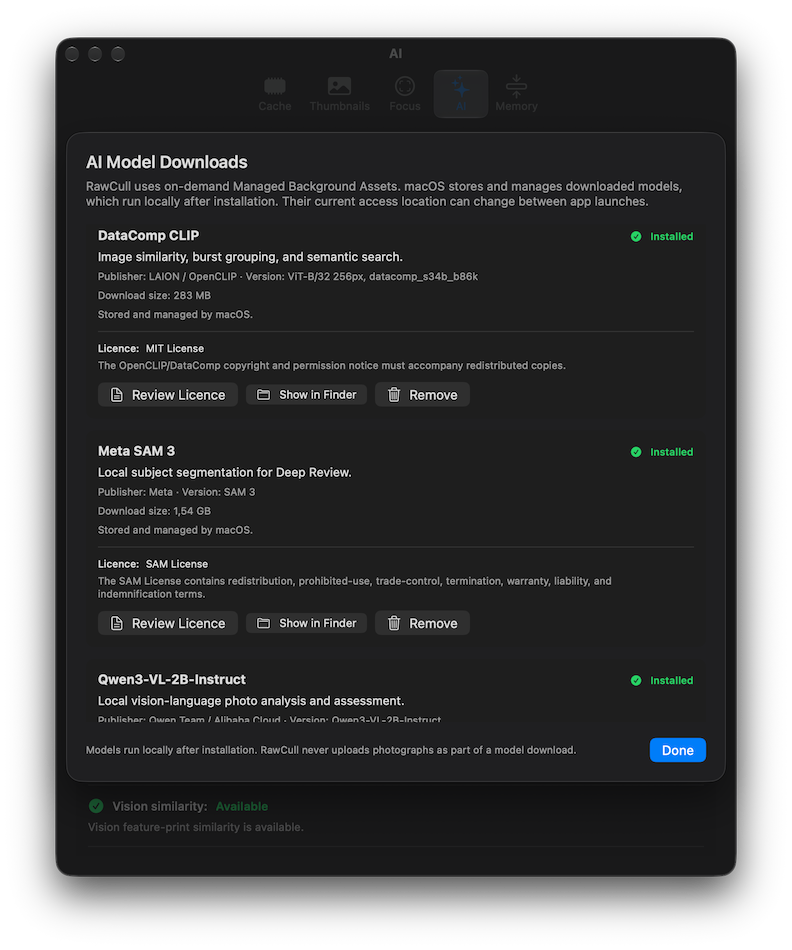
The AI Model Downloads sheet lists DataComp CLIP, Meta SAM 3, and Qwen3-VL-2B-Instruct as Installed. Each model entry identifies its purpose and installation status; the visible CLIP and SAM 3 entries also show publisher, version, download size, licence information, and Review Licence, Show in Finder, and Remove controls. Done closes the sheet.
The sheet explains that macOS stores and manages downloaded models through Managed Background Assets, and their access location can change between app launches. Models run locally after installation, and photographs are not uploaded as part of a model download. See AI Analysis for model purposes and download guidance.
9 - Settings
Open RawCull > Settings. The settings shown in this guide provide five tabs.
Tab
Main controls
Cache
View memory and disk cache use; clear thumbnail or full-size JPG caches
Thumbnails
Set list and preview sizes; enable and adjust sharpened RAW zoom previews
Focus
Adjust the focus-mask threshold, pre-blur, amplification, erosion, and dilation
AI
Check DataComp CLIP, SAM 3, and Qwen readiness; manage optional model downloads
Memory
View unified memory use, RawCull memory use, and macOS pressure
Sharpen Zoom Preview develops the RAW through macOS and applies micro-detail sharpening. It is slower than using the embedded JPG and may not be available for every file.
Use Save Settings after changing thumbnail or focus values. Reset to Defaults restores the values in that settings area. Scoring options are available from Scoring Parameters in the main window.
Settings > AI reports whether DataComp CLIP, SAM 3, and Qwen are available. Enable DataComp CLIP before indexing a catalog for similarity and semantic search. Manage Downloads opens the model manager. The Qwen section includes Validate Again to recheck the selected model; button labels can differ between versions. See AI Settings screenshots for the illustrated layout.
AI features require macOS 27 (Golden Gate) and an Apple Silicon Mac. See AI Analysis for the purpose of each model.
10 - Technical Documentation
Technical documentation of RawCull analysis implementation and result computation.
These tech docs describe how RawCull computes analysis results, stores evidence, and turns measurements into review recommendations. They are intended for readers who want implementation detail beyond the user guides.
The reference is the local RawCull source inspected on 6 October 2026, primarily the RawCull/RawCull application, RawCullCore, PhotoAnalysisKit, and PhotoAIKit. Defaults and algorithms describe that source snapshot; they do not establish which features are available in an App Store release. RawCullBrowse and RawCullFB have separate integrations and should not be assumed to behave identically.
Vision-language generation, structured scores, and object assessment
The three principal AI model families are CLIP, SAM 3, and Qwen Vision. The AI tabs combine them: SAM 3 + CLIP uses segmentation and semantic evidence, Qwen Vision performs image assessment, and Objects combines SAM 3 instances with Qwen. Apple Vision also supplies feature prints, attention saliency, and classification. EfficientSAM has a separate provider in the source tree; it is not one of the three families documented here.
How the stages connect
Decode a photograph into an analysis image and read available camera metadata.
Measure sharpness and retain regional focus evidence.
Index visual representations and compare adjacent photographs.
Create burst boundaries and rank candidates using deterministic rules.
Run optional subject-mask or vision-language review on a smaller candidate set.
A similarity distance, a sharpness scalar, a segmentation confidence, and a generated assessment score have different meanings. Their scales cannot be interchanged. The pages below identify the computation and its limits at each stage.
An illustrated connection between pixels, focus evidence, similarity, segmentation, burst ranking, and AI assessment.
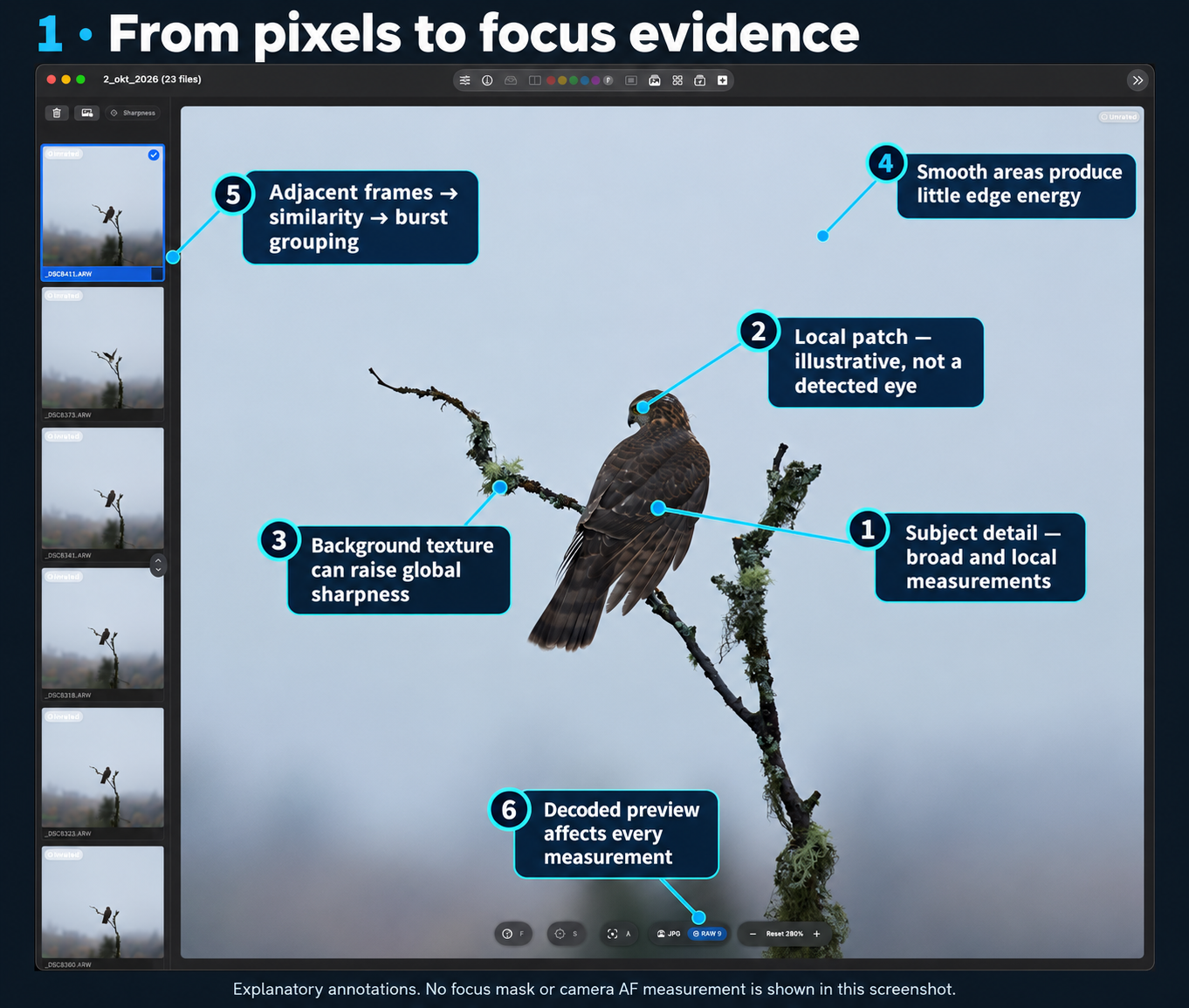
This visual tech doc follows the bird photograph _DSC8411.ARW through the analysis stages. The two supplied screenshots show a zoomed photo and a completed Objects review. They connect the technical concepts to a concrete example; they do not expose every intermediate measurement.
Annotations identify visible results and illustrative locations. The zoom screenshot does not show an active focus overlay, a measured local patch, or a camera AF coordinate. Its eye/detail callouts illustrate where inspection is useful; they do not claim that RawCull detected an eye. The neighboring thumbnails illustrate candidate frames, not a confirmed burst group.
Figure 1: From pixels to focus evidence
Decoded image detail, smooth sky, textured branches, local subject inspection, and neighboring candidate frames. The annotations explain possible sources of evidence; no measured focus mask is displayed.
Callout
What it connects
Technical meaning
1. Subject detail
Feather texture → regional sharpness
Broad subject and local measurements help distinguish subject detail from detailed surroundings.
2. Local patch
Eye/head inspection → local evidence
The marked location is illustrative. Patch scoring uses spatial detail and heuristics; it does not prove eye detection.
3. Background texture
Lichen and branches → global sharpness
Strong background edges can raise whole-frame detail even when the intended subject is soft.
4. Smooth sky
Flat regions → low edge energy
The Laplacian responds to spatial changes; smooth regions usually contribute little detail.
5. Neighboring frames
Candidate images → similarity and burst grouping
Actual grouping also needs compatible similarity representations, capture time, and metadata.
6. Preview selection
Decoding → every pixel-based stage
Embedded JPEG and developed RAW can differ in resolution, sharpening, noise, and fine detail.
Sharpness scoring applies pre-blur and a Laplacian detail signal, then reduces regional samples using robust-tail statistics. It blends broad AF/saliency evidence and local detail with the global score. The focus mask turns a related detail signal into spatial highlights using adaptive thresholds, morphology, and colorization. Its visible coverage is not the scalar sharpness score.
The camera AF point records where focus was attempted. Vision saliency supplies attention rectangles. Subject evidence explains how those regions are selected and how a separate SAM 3 mask can constrain deeper detail measurements.
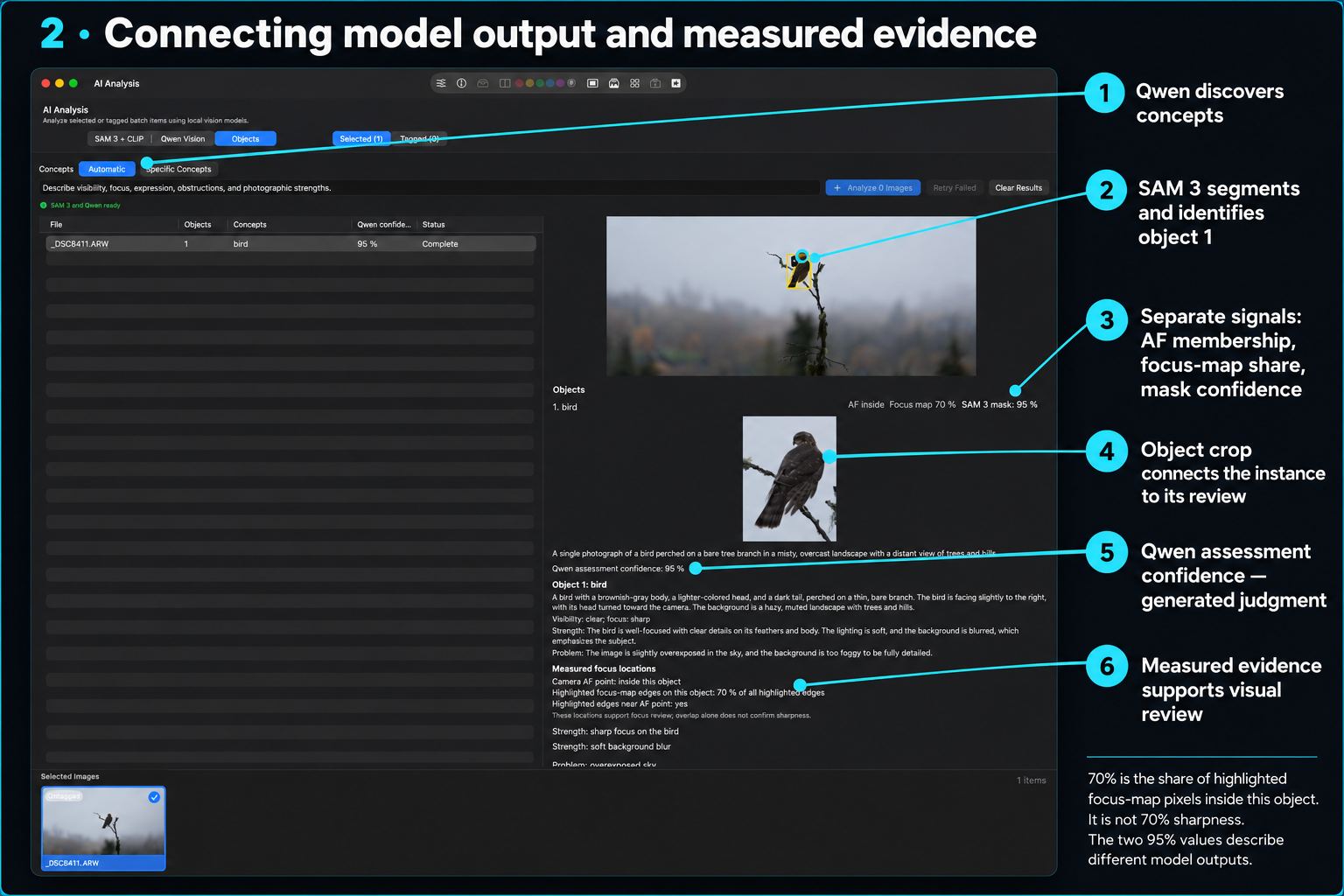
Figure 2: Connecting models and measured evidence
Objects review of the same bird photograph, connecting automatic concept discovery, SAM 3 instances, camera AF membership, focus-map overlap, and Qwen assessment. Displayed percentages have distinct meanings.
Callout
Visible result or control
Technical meaning
1. Automatic concepts
Automatic mode; concept bird
Qwen proposes concepts for SAM 3 to segment. Manual concept mode bypasses automatic discovery.
2. Object instance
Bird marked as object 1
SAM 3 supplies instance geometry and a mask. The application retains and deduplicates instances.
3. Separate signals
AF inside, Focus map 70%, SAM 3 mask: 95%
AF membership, highlighted-pixel share, and segmentation confidence answer different questions.
4. Object crop
Enlarged bird below the overview
The crop provides a readable view of the retained object. The workflow also prepares an identified object board for Qwen assessment.
5. Qwen confidence
Qwen assessment confidence: 95%
This is generated assessment confidence, separate from SAM 3 confidence.
6. Measured locations
AF and focus-map evidence below the assessment
These locations support review of the generated description; overlap alone does not confirm sharpness.
Reading the percentages correctly
The screenshot reports Focus map 70%. In the object-evidence contract, this is the fraction of all highlighted focus-map pixels that lie inside this object:
focus-map share = highlighted pixels inside the object / all highlighted pixels
It does not mean that 70% of the bird is sharp or that the bird has a sharpness score of 0.70. It also differs from the focus-mask renderer’s coverage diagnostic, which measures visible highlights relative to the rendered search region.
SAM 3 mask: 95% describes segmentation confidence. Qwen assessment confidence: 95% describes a generated assessment. Equal displayed numbers do not make these interchangeable. The phrase “focus: sharp” is Qwen’s judgment, while the AF membership and focus-map share are separately computed spatial evidence.
How all the technical stages connect
Stage
Input → result
Connection to the next stage
Decode
RAW file or embedded preview → analysis pixels
Supplies the image used by detail processing and model inference.
Sharpness
Pixels + metadata + AF/saliency regions → scalar and regional evidence
Supplies ordinary candidate ranking and explains where measured detail came from.
Combines technical evidence with timing, pose, expression, and intent.
These are connected branches, not a requirement to run every model on every file. Ordinary sharpness and focus-mask processing do not require all three optional model families. Vision feature prints support image similarity but do not provide a CLIP text encoder. The Objects workflow shown here combines Qwen and SAM 3; the screenshot does not establish that CLIP ran for this result.
The ordinary burst score uses deterministic weights: 62% ranking sharpness, 12% AF-point availability, 10% saliency label evidence, and 16% metadata. Masked Deep Review instead combines 40% broad detail, 40% local detail, and 20% fine detail before its background penalty. A valid structured Qwen photo assessment uses 50% composition, 20% exposure, and 30% subject visibility after normalizing its generated 1–5 ratings. That photo formula is separate from the Objects narrative shown in Figure 2.
Neither screenshot shows index vectors, pairwise distances, burst confidence, or the numeric sharpness breakdown. Those stages are explained here through their source-defined connections, not inferred values for this photograph.
The displayed object-location evidence is implemented in RawCull/RawCull/Intelligence/ObjectAnalysis/ObjectAnalysisModels.swift; the orchestration is in RawCullObjectAnalysisFeature.swift. This page uses the supplied screenshots as visual examples and the source snapshot described in the technical index.
10.2 - Sharpness Scoring — Technical Detail
Technical documentation of RawCull analysis implementation and result computation.
Sharpness is a deterministic measurement of spatial detail in the decoded analysis image. Vision supplies attention regions and optional labels; the numeric detail score comes from image processing in PhotoAnalysisKit.
Image and edge-energy pipeline
The scorer normalizes input to 8-bit sRGB RGBA. It applies Gaussian pre-blur, then the Metal focusLaplacian kernel and a fixed scoring gain. Pre-blur suppresses noise before second-derivative energy is measured. Its effective radius is:
The ISO multiplier is 1 below ISO 800, rises linearly to 1.6 at ISO 3200, then rises to a cap of 2.2 at ISO 9600. The landscape aperture hint uses a blur damping factor of 0.8. Quality settings can blend a second, finer Laplacian pass: its pre-blur radius is max(0.35, primaryRadiusSetting × 0.58) and the blend weight is clamped to 0–0.65. This preserves small textured detail while retaining the normal noise suppression pass.
The energy image is rendered as floating-point RGBA. The scorer samples its red channel, excluding a configurable outer border to avoid edge artifacts. Preview resolution, decoding mode, ISO, aperture hints, and quality configuration affect the measurement; the score is not a camera-independent optical resolution metric.
Robust-tail statistic
For a sample set of size N, percentile indices use floor((N−1) × p). Let p20, p90, and p97 be the corresponding energies. The score is:
band = samples whose energy is between p90 and p97, inclusive
bandMean = mean(max(0, energy − p20)) over band
density = min(1, (band.count / N) / 0.06)
robustTail = bandMean × density
If p97 <= p90, or the band is empty, the result is max(0, p90−p20). An empty sample set has no score. Subtracting p20 provides a background energy reference; excluding the highest tail reduces the influence of isolated extreme edges. The density factor attenuates sparse evidence.
Micro-contrast is the standard deviation of finite energy samples, computed as sqrt(max(0, mean(x²)−mean(x)²)). It measures variation in the processed detail signal, not exposure contrast in the original photograph.
Regional measurements and final scalar
The breakdown retains whole-frame, selected saliency, AF-region, AF-center, and AF-neighborhood scores. Broad saliency and AF regions require at least 64 samples; the tighter AF center requires 16. Saliency selection favors overlap with the recorded AF location, then proximity, confidence, interior detail, and area.
When both broad AF and saliency measurements exist, the subject score begins as 0.60 × AF + 0.40 × saliency. A local-detail estimate similarly combines the selected AF-neighborhood and subject-interior patches. When broad and local evidence both exist, the conservative subject score is 0.75 × broad + 0.25 × local. Available evidence is used alone when the other component is absent.
The frame/subject blend is (1−w) × global + w × subject. Weight precedence is explicit override, aperture-hint override, then configured salient weight. If global evidence exists without any subject measurement, the fallback is global × (1−w)³.
Two further adjustments apply to the blend. A silhouette penalty starts when the outer 12% rim of the selected subject region dominates the interior: the implementation uses the ratio of rim mean to the sum of rim and interior means, with a threshold of 0.62. The penalty increases with excess dominance and the configured strength. A saliency-only subject-size bonus multiplies by 1 + normalizedArea × subjectSizeFactor; an available AF region disables that bonus.
Finally, subject micro-contrast drives an aperture-dependent blur gate. Between the low and high configured thresholds the multiplier rises linearly from 0.20 to 1.0. With insufficient subject samples it is 1.0. This is a soft attenuation, so low-contrast subject detail does not encounter a hard rejection boundary.
Calibration and interpretation
See Focus mask for the full overlay rendering pipeline, including local adaptive thresholds and morphology.
FocusMaskCalibration samples positive finite overlay-detail energies and selects a percentile threshold, default p90, clamped to 0.01–0.95. It requires at least five successful images by default. This calibrates the visual focus-mask threshold only. Scalar scoring uses stableScoringEnergyMultiplier and is independent of the catalog’s calibration threshold.
The final scalar, AF-point measurement, focus-mask overlay, and masked Deep Review score remain distinct results. A high whole-frame measurement can come from a detailed background; an AF coordinate records where focus was attempted, not proof that focus succeeded.
Source map
PhotoAnalysisKit/Sources/PhotoAnalysisKit/FocusMaskEngine+Scoring.swift: energy processing, statistics, regional selection, blending, and attenuation.
Technical documentation of focus-mask edge detection, region selection, adaptive thresholds, and rendering.
The focus mask renders spatial detail as a colored overlay. It answers where the decoded image contains strong edge energy. It shares low-level processing with sharpness scoring, but its thresholds and visual styling serve a different purpose from the scalar ranking score.
This page describes the RawCull source inspected on 6 October 2026. For controls and keyboard shortcuts, see the Focus Mask user guide.
Detail signal and image scale
FocusMaskEngine transforms the input image by the requested scale before computing detail. “Native pixels” here means pixels of that scaled analysis image, which may be an embedded preview rather than the camera’s full RAW sensor data.
buildFocusMaskDetail sets the pre-blur parameter to max(0.35, configuredPreBlurRadius × 0.52) and calls the shared amplified Laplacian pipeline in native-mask mode. The effective Gaussian radius is:
Native-mask mode uses a resolution multiplier of 1, clamps input to its extent before blurring, and evaluates the kernel over the original extent. Clamping prevents the image boundary from introducing artificial detail. ISO and aperture damping follow the shared pipeline described in sharpness scoring.
The Metal kernel computes a 3×3 discrete Laplacian independently for each RGB channel, then combines absolute responses with Rec. 601 weights:
The scalar is packed into RGB, amplified by the configured energy multiplier, and retained as floating-point image data. Unlike scalar scoring’s fixed gain, the mask uses the configured amplification setting. Texture, noise, JPEG sharpening, preview resolution, and blur settings all influence this signal.
Choosing the visual region
When subject isolation is enabled, rendering can reuse the winning saliency rectangle and region from existing focus evidence. If a saliency rectangle is unavailable, the mask-only entry point can request attention saliency without classification and select a candidate using AF evidence.
Normalized AF coordinates are converted to Core Image coordinates using y = 1−yAF. AF squares and saliency rectangles are intersected with unit bounds, mapped into pixel coordinates, rounded outward to integral rectangles, and clipped to the image extent.
The visual region can be AF center, AF neighborhood, broad AF region, saliency, mixed AF and saliency, or global. The renderer honors a requested evidence region when its geometry exists; otherwise it falls back to broad AF, then saliency, then global. Disabling subject isolation explicitly chooses global edges.
Mixed mode searches both AF and saliency rectangles. These are rectangular regions, not SAM 3 pixel masks. A subject-isolated focus overlay therefore may contain background detail within the selected rectangle. Subject evidence explains the separate segmented-subject scorer.
Local patches and visible extent
The renderer ranks overlapping patches within the search regions. Patch width and height start at 34% of the corresponding region dimension, bounded between 3.5% and 14% of the full image dimension. Sampling steps are half the patch dimensions, with a minimum of one pixel. An AF-centered patch is added when sufficiently contained, and rendering also evaluates a patch spanning 6% of the image width and height around AF.
Patch evidence includes robust-tail detail, micro-contrast, coverage, AF distance, silhouette fraction, and shape heuristics. Selection retains up to three positive finite composite scores while excluding patches with overlap ratio >= 0.55 relative to the smaller patch. For AF-anchored evidence, the nearest patch can precede the strongest when the strongest is less than 1.15 times its composite score.
These patches summarize evidence. They do not truncate the visible overlay: threshold sampling and clipping use the complete search rectangles. Shape heuristics for compact or ring-like detail are not an eye detector or proof that the subject’s eye is in focus.
Adaptive threshold
The renderer sorts positive finite energies from the visual search regions. Its percentile uses floor((N−1) × percentile). Let T be the configured threshold, which may have come from catalog calibration:
Visual region
Percentile
Minimum floor
Cap percentile value at T
AF center, neighborhood, or broad AF
p82
max(0.32 × T, 0.01)
Yes
Saliency, mixed, or global
p90
max(0.55 × T, 0.01)
No
The effective threshold is the selected percentile value, optionally capped at T, clamped between the floor and 0.95. If no positive finite samples exist, the result is the floor capped at 0.95.
The rendering path does not lower this threshold to satisfy a minimum visible coverage. Weak detail may produce an empty mask, and the recorded relaxedForVisibility flag is false. Although the source contains a visibility-relaxation helper, this rendering path does not call it.
Catalog calibration is another stage: it samples positive detail energies across images and supplies an overlay threshold, default p90. It does not recalibrate the fixed scalar sharpness gain. Local adaptive rendering then derives the effective threshold from this configured fallback and the visual region.
Thresholding, morphology, and color
The renderer copies the energy’s red channel into grayscale and applies CIColorThreshold. It optionally erodes the binary image with CIMorphologyMinimum, then dilates it with CIMorphologyMaximum. Erosion removes small or narrow features; dilation expands surviving highlights. Their order matters because dilation operates on the eroded result.
A color matrix maps the binary signal to orange-red RGB coefficients (1.0, 0.22, 0.02) and alpha coefficient 0.92. The image is clipped to the union of search rectangles over a transparent background. Optional Gaussian feathering follows clipping, and the result is cropped to the analysis-image extent before becoming a CGImage. Feathering can soften highlights beyond a region boundary before the final image crop.
The raw-Laplacian diagnostic option bypasses thresholding, morphology, colorization, and subject-region clipping and returns the cropped amplified detail image. Its recorded region source still describes available selection geometry; it does not imply that the raw image was region-isolated.
Coverage and diagnostics
Rendered coverage is measured after morphology and feathering. Alpha above 0.05 counts as visible. Core Image area-average reductions measure visible pixels within the union of search regions and divide by that union’s area fraction. This is a fraction of the rendered region, not SAM 3 subject coverage and not a fraction of pixels proven optically sharp.
The breakdown records region source and effective threshold. Focus evidence also retains visualized region, overlay style, patch rankings, rendered coverage, and alignment/confidence diagnostics. The region source describes available saliency/AF geometry, while the visualized region identifies the actual evidence region used for rendering.
Core Image and Vision work runs in a cancellable background worker using an immutable configuration snapshot. Cancellation checks stop obsolete analysis and rendering. An empty overlay may indicate insufficient edge energy; failure or cancellation can instead return no image, so these cases should not be interpreted identically.
Source map
PhotoAnalysisKit/Sources/PhotoAnalysisKit/FocusMaskEngine+MaskGeneration.swift: region selection, patches, thresholds, morphology, colorization, and coverage.
PhotoAnalysisKit/Sources/PhotoAnalysisKit/Resources/Kernels.ci.metal: 3×3 Laplacian and channel weighting.
PhotoAnalysisKit/Sources/PhotoAnalysisKit/FocusMaskEngine+Scoring.swift: shared amplified detail pipeline and regional scoring.
PhotoAnalysisKit/Sources/PhotoAnalysisKit/FocusMaskTypes.swift: region, patch, evidence, and diagnostic types.
RawCull/RawCull/Model/ViewModels/FocusandSharpness/FocusMaskModel.swift: application-facing generation and calibration adapter.
10.4 - Vision and CLIP Indexes — Technical Detail
Technical documentation of RawCull analysis implementation and result computation.
RawCull supports two different visual representations: Apple Vision feature prints and CLIP embeddings. An index stores reusable representations keyed to photographs, avoiding repeated inference for every comparison. The representations are not interchangeable.
Vision feature prints
VisionFeaturePrintBackend creates a VNGenerateImageFeaturePrintRequest, using revision 2 by default. Vision produces a VNFeaturePrintObservation; the provider securely archives that observation as the artifact payload. Callers receive a typed artifact rather than the Vision object itself.
Comparison securely decodes both observations and calls computeDistance. A lower distance indicates greater visual similarity. The provider verifies compatible descriptors and rejects non-finite distances. Apple’s feature representation and distance internals are framework-owned: RawCull does not implement an explicit cosine formula for these observations.
The descriptor records vision-feature-print, the request revision, archive representation version, and framework-managed preprocessing/normalization identifiers. There is no public embedding dimension in this artifact. Vision feature prints do not provide a text encoder, so a Vision index alone cannot implement CLIP semantic text search.
CLIP vector indexes
CLIP produces numeric image embeddings and matching text embeddings. Image vectors are L2-normalized where configured. For compatible image vectors a and b, the contract computes:
Comparison requires matching backend, model identity, nonempty vectors of equal length, and positive magnitudes. Invalid or incompatible comparisons return no distance. Identical directions give distance 0; orthogonal directions give 1. This scale must not be interpreted as a calibrated probability or reused as a Vision distance scale.
Image-to-image comparisons support visual similarity. Text-to-image comparisons support semantic search using the selected model’s shared representation. See CLIP model for tensor preprocessing and inference.
Compatibility and freshness
SimilarityArtifactDescriptor separates the source fingerprint from backend identity. Distance compatibility checks the representation and backend configuration fields, including model fingerprint, dimensions, preprocessing version, normalization version, and configuration version. Two different photos may be compared when those fields agree; their source fingerprints are expected to differ.
The source fingerprint describes the input used to create an artifact. Index reuse must also establish that the artifact still belongs to the current source. A model or preprocessing change can require rebuilding representations even if the photograph is unchanged. Mixing CLIP model variants produces incompatible vectors even when their dimensions happen to match.
Index execution and fallback
SimilarityArtifactIndexer decodes images and asks a provider to generate artifacts using bounded concurrency, default two tasks. It returns successful artifacts, per-source failures, and whether whole-batch fallback occurred. It checks cancellation and reports completed item counts.
Fallback is an explicit policy: none, per-item, or whole-batch. Whole-batch fallback reruns all sources with the fallback provider if the initial pass has failures. Per-item fallback can yield representations from different backends, but compatibility checks still prevent cross-backend distance calculation. The existence of a package fallback policy does not imply that every application workflow enables it.
Burst grouping consumes adjacent-file distances rather than comparing every possible pair. Missing similarity evidence creates a boundary in the grouping engine. This prevents an unmeasured pair from being treated as a confident match.
Source map
PhotoAIKit/Sources/VisionFeaturePrintBackend/VisionFeaturePrintBackend.swift: generation, secure archive, and native distance.
PhotoAIKit/Sources/PhotoAIContracts/SimilarityArtifact.swift and ImageEmbedding.swift: representation compatibility and cosine distance.
PhotoAIKit/Sources/PhotoAIWorkflows/SimilarityArtifactIndexer.swift: indexing and fallback policies.
RawCull/RawCull/Intelligence/Similarity/RawCullSimilarityFeature.swift and RawCullVisionSimilarityService.swift: application integrations.
10.5 - Subject Evidence — Technical Detail
Technical documentation of RawCull analysis implementation and result computation.
Subject evidence tells RawCull where a measurement came from and how trustworthy that region is. It combines camera metadata, Vision attention regions, optional classification, segmentation geometry, and measured interior detail. These signals answer different questions and retain separate provenance.
Camera AF and Vision saliency
A normalized camera AF coordinate records where autofocus was attempted. For Vision saliency comparisons the scorer flips the vertical coordinate with yVision = 1−yAF. Incorrect coordinate conventions would select a different region of the photograph.
VNGenerateAttentionBasedSaliencyImageRequest supplies candidate bounding boxes. A candidate survives when its normalized area exceeds 0.03 or its confidence is at least 0.9. Selection prioritizes AF overlap, distance to the AF point, saliency confidence, measured detail, area, and a deterministic geometric tie break. This is attention-based region selection, not pixel segmentation.
Optional VNClassifyImageRequest supplies a whole-image label. The label-selection code first looks for subject-related keywords at confidence 0.06 or higher, then accepts non-environment labels at 0.15 or higher. The stored saliency summary’s subjectConfidence comes from the maximum salient-object confidence; it should not be read as the classification label’s posterior probability.
The sharpness breakdown also retains AF-center and neighborhood evidence, local scoring patches, the selected region, and selection reason. See sharpness scoring for the numeric blends.
Segmentation acquisition and quality
SubjectMaskSelector checks a repository for a cached mask, then optionally generates one. Its package defaults try subject, person, bird, and animal prompts, stop at the first acceptable result, and require at least warning-level geometry. RawCull’s Deep Review chooses its own prompt sequence according to Auto, Full Subject, or Head/Face presets and the subject label.
Mask geometry describes normalized coverage and bounding box. Quality is poor for an empty box, coverage at or below 0.005, or coverage at or above 0.90. A good mask has fresh geometry, coverage in 0.02–0.70, and no box edge within 0.02 of an image edge; other usable masks receive a warning. These checks measure geometric plausibility, not semantic correctness. Selection records attempts, confidence, cache origin, and whether minimum quality was met.
Masked detail measurement
SubjectMaskFocusScorer resizes the mask to the analysis image and converts image RGB into luminance:
Y = (0.2126R + 0.7152G + 0.0722B) / 255
energy = abs(4Y − Yleft − Yright − Yup − Ydown)
It excludes a border of max(2, min(width,height)/250) pixels. A pixel belongs to the subject when mask alpha exceeds 16 on the 0–255 scale. Coverage is the counted subject pixels divided by the full image pixel count.
Broad detail is the robust-tail statistic over subject energies; fine detail is their standard deviation. For local evidence, the image is divided into a 6×6 grid. A patch needs at least max(64, 0.08 × nominalPatchArea) masked samples. Each valid patch scores robustTail + 0.35 × microContrast; the best patch supplies local detail.
maskedScore = 0.40 × broad + 0.40 × (local, or broad if local is absent)
              + 0.20 × fine
If whole-image robust-tail energy exceeds max(maskedScore × 1.45, maskedScore + 0.04), the scorer applies a background-dominance multiplier of 0.82. It records whether a local patch was usable, whether AF lies inside the mask, and whether that penalty applied. AF membership is evidence; it is not an extra numeric bonus in this formula.
This scorer uses a luminance Laplacian directly. It is a separate computation from the pre-blurred Metal pipeline used by ordinary sharpness, so their raw scalars should not be compared as though they share a calibration.
Deep Review result and confidence
The application stores the masked final score as deepScore, alongside ordinary sharpness, prompt, mask confidence, coverage, local detail, fallback status, and issues. Groups of more than 12 input candidates are narrowed to eight for detailed review; otherwise all candidates are considered.
Deep Review confidence uses the relative lead (firstScore−secondScore)/max(firstScore,1e−6). High confidence requires a lead of at least 0.12, a mask prompt, local detail, no issues, and no fallback mask. A lead of at least 0.05, or strong evidence with a fallback mask, gives medium confidence. Other cases give low confidence. This rule differs from the absolute score gaps in ordinary burst ranking.
Source map
PhotoAnalysisKit/Sources/PhotoAnalysisKit/FocusMaskEngine+Scoring.swift: attention, classification, and AF region handling.
PhotoAIKit/Sources/PhotoAIWorkflows/SubjectMaskSelection.swift, SubjectMaskGeometry.swift, and SubjectMaskQuality.swift: acquisition and geometry checks.
RawCull/RawCull/Intelligence/DeepReview/DeepAIReviewFeature.swift: candidate selection, evidence, and confidence.
10.6 - Burst Groups — Technical Detail
Technical documentation of RawCull analysis implementation and result computation.
Burst analysis has two independent parts: deciding which adjacent photographs belong together, then ranking candidates within each group. RawCullCore implements these as deterministic engines. Optional deeper AI review is a subsequent stage.
Group boundaries
BurstGroupingEngine processes the supplied file order, compares each file with its predecessor, and starts a new group if any configured boundary condition fires. This is adjacent linkage: A may match B and B may match C even when A and C would differ. It is not all-pairs clustering.
Boundary evidence
Default rule
Visual distance
Split at distance >= 0.25
Missing visual distance
Always split
Capture time
Split when absolute gap > 2 seconds
Modification-date fallback
Use a 10-second maximum gap
Camera
Require the same normalized camera value
Focal length
Split when available focal lengths differ by > 3 mm
Shutter, aperture, ISO
Split when an individual change exceeds 0.5 EV
Exposure compensation
Split when change exceeds 0.34 EV
The defaults belong to grouping algorithm version 4. Camera and focal-length requirements are configurable. Lens changes are recorded in boundary evidence but do not independently split a group in this engine; they do affect metadata stability during ranking.
Exposure changes are compared individually, rather than canceled into a net exposure difference. Shutter and ISO deltas use abs(log2(new/old)); aperture uses 2 × abs(log2(new/old)); exposure compensation uses an absolute linear difference. If numeric conversion fails but both textual shutter, aperture, or ISO values exist and differ, an unquantified exposure change still creates a boundary.
The engine records the pair IDs, distance, absolute gap, fallback-time status, focal delta, maximum exposure adjustment, metadata-change flags, and boundary reasons. Missing focal data alone does not trigger the focal-length rule.
Candidate score
Let S = clamp(rawSharpness/catalogMaximum, 0, 1). Missing, non-finite, or invalidly normalized sharpness contributes zero. If at least two measured candidates have a normalized spread of at least 0.03, compute burst-relative sharpness R = (S−groupMinimum)/(groupMaximum−groupMinimum). The ranking sharpness component is then 0.65S + 0.35R; otherwise it is S.
The focus component is 0.70 with an AF coordinate and 0.45 without one. It measures availability of AF evidence, not AF sharpness. The saliency component is 0.45 without a subject label, 0.60 if no dominant label is available, 0.75 for the dominant group label, and 0.25 for another label.
Metadata starts at 0.70 when exposure, camera, and lens are stable, or 0.40 otherwise. Tight similarity adds 0.15; an aperture <= f/5.6 adds 0.05. ISO above 800 subtracts 0.05 per stop, capped at 0.15. Lower estimated motion risk adds 0.05; elevated risk subtracts 0.05 per stop, capped at 0.15. The final component is clamped to 0–1.
Motion risk uses shutter time multiplied by focal length when focal data exists: a ratio <= 0.5 is lower risk and > 1 is elevated risk. Without focal data, shutter times <= 1/500 second are lower risk and >= 1/60 second are elevated risk. These are metadata heuristics, not observed subject-motion estimates.
Candidates sort by descending overall score; ties retain input group order. The first and second become the recommendation and runner-up.
Confidence and review
Tight similarity means every internal boundary distance is below 0.22. Metadata stability excludes any internal exposure, camera, or lens change. Reliable capture time requires every file to avoid modification-date fallback.
High confidence requires at least three group members, a best-versus-second absolute overall gap >= 0.12, best normalized sharpness >= 0.65, stable metadata, tight similarity, and reliable capture times. A gap >= 0.05 with stable metadata gives medium confidence. Missing scores or other cases give low confidence.
The result’s isSafeForOneClickCulling flag is true only for high confidence. The engine returns scores, reasons, cautions, recommendation IDs, and review state; it does not itself mutate file ratings. Expression, moment, and framing are not directly measured by this ordinary ranking formula. Use subject evidence or Qwen Vision to understand the separate deeper-review stages.
RawCullCore/Sources/RawCullCore/BurstAnalysisModels.swift: defaults, version, and evidence types.
RawCullCore/Sources/RawCullCore/BurstRankingEngine.swift: ranking and confidence.
RawCull/RawCull/Intelligence/BurstAnalysis/: orchestration and cache compatibility.
10.7 - CLIP Model — Technical Detail
Technical documentation of RawCull analysis implementation and result computation.
CLIP supplies image and text representations for visual similarity and semantic search. RawCull’s Core AI provider runs separate image and text inference functions from a validated model bundle. It does not generate prose or measure optical focus.
Inference inputs
CoreAICLIPProvider reads runtime configuration that specifies function names, tensor input/output names, image preprocessing, and tokenizer behavior. RawCull includes model assets for OpenAI CLIP and DataComp CLIP; selected bundle identity and configuration determine which representation is used.
Image preprocessing resamples the source and prepares RGB values in channel-first order. Channels are converted from bytes to 0–1 floats, then normalized:
The implementation supports preprocessing paths selected by configuration, including Pillow-compatible bicubic resizing followed by integer center crop. When the resized excess is odd, the crop origin uses integer division rather than rounding a half-pixel offset. Crop and interpolation details can change embeddings, which is why preprocessing version participates in artifact compatibility. The tensor size comes from the loaded model configuration and descriptor; it should not be assumed universal across bundles.
Text preprocessing uses the configured CLIP tokenizer or Hugging Face tokenizer JSON. Tokens are padded to the model context length; truncation preserves an end token. Models with an attention-mask input receive that mask. Some converted function signatures also require dummy inputs for the unused modality, which the provider constructs to satisfy the exported model contract.
Outputs and calculations
The image function returns an embedding vector. Text inference validates a two-dimensional [batch, dimension] embedding output, supported float scalar type, and consistent element count. Model identity and backend accompany the representation.
CLIP’s learned encoders map image and text inputs into a shared feature space. RawCull computes similarity from the returned vectors rather than reconstructing the encoders’ internal layers. L2 normalization divides by vector magnitude, and image cosine distance is 1−cosineSimilarity, clamped to 0–2. Vision and CLIP indexes describes compatibility and storage.
Semantic search encodes a description and compares it with indexed image representations from the same model. Ranking indicates relative correspondence to the description. A similarity score is not a calibrated probability that a label is true, and it does not establish sharpness, eye focus, or aesthetic quality.
Use with subject review
CLIP supplies semantic evidence while SAM 3 supplies subject geometry. A semantic match and a mask can support the same workflow, but the numeric masked focus score is computed by RawCull’s image-processing scorer. It is not the CLIP embedding distance. The current Deep Review pipeline retains prompt verification and fallback evidence alongside that masked score.
Apple Vision feature prints provide another visual-similarity backend; they do not substitute for CLIP’s text encoder. Changing between OpenAI and DataComp bundles requires compatible indexing for the chosen model rather than combining their vectors.
Source map
PhotoAIKit/Sources/CoreAICLIPBackend/CoreAICLIPProvider.swift: model loading, tokenization, preprocessing, and tensor inference.
PhotoAIKit/Sources/PhotoAIContracts/ImageEmbedding.swift: normalization and image cosine distance.
RawCull/ModelAssets/Notices/CLIP-OpenAI/ and CLIP-DataComp/: bundle provenance.
10.8 - SAM 3 Model — Technical Detail
Technical documentation of RawCull analysis implementation and result computation.
SAM 3 supplies prompted subject masks and object instances. RawCull’s CoreAISAM3Provider adapts the Core AI segmentation runtime into PhotoAIKit contracts. The downstream sharpness calculation remains application-owned.
Segmentation input and output
The provider receives an image and a subject or object-concept prompt. The runtime predicts segments with masks, scores, and spatial information. The provider uses a mask threshold of 0.5 and converts runtime results into image masks and normalized geometry.
For the subject contract, compatible segments are combined into an exhaustive union mask: a pixel is included when any returned segment includes it. The adapter also contains probability-mask decoding and feathering around the threshold. Unioning multiple instances means a subject mask can include several animals or people; it should not be assumed to identify one individual.
The returned confidence is derived from runtime output, with decoding fallbacks where applicable. It represents segmentation evidence. It is separate from geometric mask quality, pixel detail, and recommendation confidence.
Object instances
The object contract retains individual masks instead of flattening them into a union. It validates mask dimensions and element counts, obtains a normalized box, and orders instances by descending score, then geometry, then original runtime order. Runtime masks use top-origin row-major coordinates; macOS box coordinates require vertical conversion.
In the Objects workflow, concepts come from manual queries or Qwen discovery. SAM 3 segments each concept. ObjectInstanceDeduplicator removes overlapping duplicate candidates before the application renders a review board with retained object IDs. Qwen then evaluates that board. Instance detection, deduplication, and language assessment are distinct stages, with separate timings and failure reporting.
From mask to result
PhotoAIKit measures mask coverage and bounding box and assigns geometric quality. A repository can reuse a cached mask for the same source and prompt; model and source compatibility determine whether evidence remains useful. Prompt fallback can provide a usable full-subject mask when a more specific head/face request is unavailable, and the review result records that fallback.
RawCull computes detail inside the chosen mask using broad robust-tail energy, best local-patch evidence, and micro-contrast. See Subject evidence for the exact 0.40 broad + 0.40 local + 0.20 fine formula and background penalty. SAM 3 does not return that sharpness score. It determines the pixels on which the application measures detail.
A geometrically plausible mask can still select the wrong subject. A union mask can also include a sharp secondary subject while the intended subject is soft. The stored prompt, geometry, AF membership, and local-detail evidence help explain the result.
Runtime boundary
The repository adapter exposes model loading, prompt submission, thresholding, decoding, and evidence contracts. The converted model’s learned segmentation internals execute inside Core AI. These docs describe the observable implementation rather than claiming an application-specific equation for the neural network’s confidence output.
Source map
PhotoAIKit/Sources/CoreAISAM3Backend/CoreAISAM3Provider.swift: subject union and object-instance adaptation.
PhotoAIKit/Sources/PhotoAIWorkflows/SubjectMaskSelection.swift and SubjectMaskQuality.swift: acquisition and validation.
RawCull/RawCull/Intelligence/ObjectAnalysis/RawCullObjectAnalysisFeature.swift and ObjectInstanceDeduplicator.swift: object workflow.
Technical documentation of RawCull analysis implementation and result computation.
Qwen Vision performs vision-language assessment of selected photographs and detected objects. It generates a response from an image attachment and an instruction. Its scores are model-generated judgments, followed by explicit application validation and weighting.
Loading and generation
CoreAIQwenProvider validates bundle metadata, a Qwen tokenizer identity, positive vocabulary and context lengths, and supported text or vision-language model kind. A vision bundle must contain vision configuration and the required embedding and vision assets. RawCull’s model provenance identifies a Qwen3-VL-2B asset pack; the provider reads configuration from the actual selected bundle.
QwenInferenceRuntime lazily creates and reuses a CoreAIVisionLanguageModel. Each request creates a LanguageModelSession, attaches the image, supplies the instruction, and passes a maximum response-token budget through GenerationOptions. A generation gate serializes shared requests. Cancellation and model-generation checks prevent obsolete work from being accepted after runtime changes.
The ordinary photo request uses a 512-token response budget. This limits generated output length, not the image resolution or the entire model context. The call sets the token budget explicitly; these docs do not assume an application-fixed temperature or sampling configuration absent from that call.
Photo assessment and numeric score
The default review criteria cover composition, exposure, subject visibility, expression, and obstructions. The structured assessment contains subject text, composition score, exposure score, subject-visibility score, optional eyes-open state, problems, strengths, and confidence.
The decoder extracts the first opening brace through the last closing brace and attempts JSON decoding. Validation requires each numeric assessment score to be in 1–5 and confidence in 0–1. RawCull computes the overall score from valid fields:
Thus the validated weighted score ranges from 0.2 to 1.0. Expression and eyes-open information can appear in the assessment but have no separate term in this formula. Generated confidence also does not multiply the overall score.
Nonempty responses that cannot be decoded as a valid structured assessment are retained as freeform text. They remain useful review output, but do not acquire an invented numeric score. Empty output fails. Per-file results keep structured assessment, freeform output, or failure information.
Objects workflow
Automatic object discovery first asks Qwen for concepts with a 384-token budget; manual concept mode bypasses that request. SAM 3 segments each concept and the application deduplicates instances. It renders a review board with object identifiers, then sends that image and object-specific criteria to Qwen with a 1024-token budget.
ObjectAnalysisResponseDecoder checks the response against the board’s allowed IDs. If structured decoding fails, the application retains the generated response as freeform output. If no instances survive segmentation, the workflow returns no object assessment rather than asking Qwen to assess an empty board.
This use of explicit instance IDs makes a generated observation traceable to a retained mask. It does not make the language model’s judgment a physical focus measurement. Object confidence, segmentation confidence, and the photo weighted score remain separate outputs.
What computes the result
The vision-language runtime encodes the attached image and generates response tokens conditioned on the instruction and image representation. RawCull delegates that learned inference to Core AI, then parses and validates output and applies the documented weighting formula. It does not compute composition or exposure ratings using a deterministic pixel formula.
Prompt wording, input image, model bundle, and generation behavior can influence assessments. Use Qwen explanations alongside the deterministic sharpness measurement and subject evidence when comparing finalists.
Source map
PhotoAIKit/Sources/CoreAIQwenBackend/CoreAIQwenProvider.swift: bundle validation and runtime construction.
RawCull/RawCull/Intelligence/Qwen/QwenInferenceRuntime.swift and QwenGenerationGate.swift: request execution and token limits.
RawCull/RawCull/Intelligence/Qwen/QwenPhotoAssessment.swift: schema, validation, freeform fallback, and score formula.
RawCull/RawCull/Intelligence/ObjectAnalysis/: discovery, review-board rendering, and response decoding.
RawCull/ModelAssets/Notices/Qwen/PROVENANCE.json: model asset provenance.
11 - Cache
RawCull caches previews to make reopening and scrolling through a catalog faster.
It keeps previews and grid thumbnails in memory and stores thumbnails and full-size embedded JPG previews on disk. If an item is missing, RawCull reads it from the original RAW file and rebuilds it.
Select Cache JPGs in Loupe view to prepare missing full-size embedded previews for the current catalog. This can make later zooming and comparison more responsive.
Open RawCull > Settings > Cache to see current cache use. Clear Disk Cache removes thumbnail files, and Clear JPG Cache removes full-size preview files. RawCull rebuilds both as needed. Clearing them does not change source photos, ratings, or exported JPGs.
Memory limits adapt to the Mac’s available unified memory. Under memory pressure, RawCull reduces or clears memory caches automatically. See Memory Pressure.
12 - Memory Pressure
Large catalogs and high-resolution previews can use substantial unified memory. RawCull monitors macOS memory pressure and adjusts its caches automatically.
Level
RawCull response
Normal
Uses adaptive cache limits based on available memory
Warning
Reduces preview and grid cache limits
Critical
Clears memory caches and keeps a small working limit
When pressure returns to normal, RawCull recalculates its normal cache limits. Source photos and saved ratings are not affected.
The Memory settings tab shows total and used memory, RawCull’s memory use, and the current system pressure.
If warnings continue, close other memory-heavy apps, stop the current task with Actions > Abort task (Command-K), or work with a smaller catalog.
13 - Security & Privacy
RawCull is designed for local photo culling. Core culling works offline, and AI indexing, search, and review run on the Mac.
File Access
RawCull runs in the macOS App Sandbox. It can read a catalog or write to a destination only after you choose that folder. macOS security-scoped bookmarks allow previously approved folders to be used again.
Copying is non-destructive: RawCull copies the chosen RAW files with the system rsync tool and does not delete files from the source catalog.
Local Data
RawCull stores settings, approved folder locations, ratings, sharpness results, burst choices, and rebuildable preview caches on your Mac. Embeddings, masks, and AI review results are also stored locally. Caches can be cleared from Settings.
RawCull does not use analytics, telemetry, cloud inference, cloud sync,
advertising, or tracking. Photographs, search descriptions, embeddings, masks,
and inference results are not sent to an external AI service.
Optional AI model downloads use macOS Managed Background Assets and therefore
require a network connection. macOS stores and manages those model resources;
after installation, RawCull runs them locally. Model downloading does not
upload photographs.
RawCull’s privacy manifest declares no tracking and lists only the required
system API access reasons.
RawCull does not request access to the Photos library, camera, microphone, location, contacts, calendars, Full Disk Access, iCloud, Bluetooth, screen recording, or accessibility services.
This Documentation Website
The app’s privacy behavior is separate from this website. The site is hosted on Netlify and is configured to use Google Analytics and Google Custom Search. Visiting the site or using its search involves online services; it does not give the website access to your photo catalogs. See Google’s privacy policy for information about those Google services.